Download and install SymplyATOM2 on macOS, then approve the ATTO ExpressSAS system extension so SymplyATOM2 can communicate with your LTO tape drive.


TABLE OF CONTENTS

Overview

SymplyATOM2 communicates with your LTO tape drive through an ATTO ExpressSAS host bus adapter. Installing SymplyATOM2 on macOS is a two-part process: first, the SymplyATOM2 application is installed using the standard macOS PKG installer; then, you must activate and approve the ATTO ExpressSAS driver before macOS will allow it to load.

The approval steps you need to follow depend on which version of macOS you are running, because Apple only supports the modern ATTO driver format on newer macOS releases:

  • macOS Tahoe (26) and later - the installer activates the ATTO ExpressSAS system extension (DEXT), a DriverKit driver approved by enabling a toggle in the ATTO ExpressSAS 5 application and then confirming that approval in System Settings › General › Login Items & Extensions.
  • macOS Sequoia (15) and earlier - DEXTs are not supported, so the installer instead installs a legacy kernel extension (KEXT) for the ATTO driver, approved through System Settings › Privacy & Security in the same way as macFUSE.

Step 3 below is split into two collapsible sections - expand the one that matches your macOS version.

FOR ETHERNET & SAS CONNECTED DRIVESEthernet (iSCSI) connected LTO you will need to install and configure ATTO Xtend SAN iSCSI Initiator software.
SAS drives connected via a non-ATTO HBA you will need to install correct macOS drivers for your chosen HBA.
Apple Silicon (M1 - M6) - complete this step first if it applies to youOn Macs with Apple Silicon, macOS blocks third-party kernel extensions (KEXTs) by default. If you are installing on macOS Sequoia or earlier, or if you are relying on macFUSE to mount LTO tapes, you must boot into Recovery Mode and use the Startup Security Utility to allow kernel extension loading before installing SymplyATOM2. If you skip this step the extension will install but cannot be approved - SymplyATOM2 will not be able complete various tasks, key mounting testing of tapes.

Full instructions: Enable KEXT Driver Support - macOS

Before you begin

RequirementDetails
macOS versionmacOS Sonoma (14) or later. Whether the ATTO driver installs as a DEXT or a KEXT depends on whether you are on macOS Tahoe (26) and later or macOS Sequoia (15) and earlier - see Step 3.
User accountAdministrator privileges required for installation and extension approval
Settings
Disable Sleep / Energy Saving
HardwareSymply LTO tape drive connected and powered on
Apple SiliconApple Silicon Macs on macOS Sequoia or earlier, and Apple Silicon Macs relying on macFUSE on any macOS version, must enable KEXT support in Recovery Mode before proceeding. Not required for the ATTO DEXT on macOS Tahoe and above.

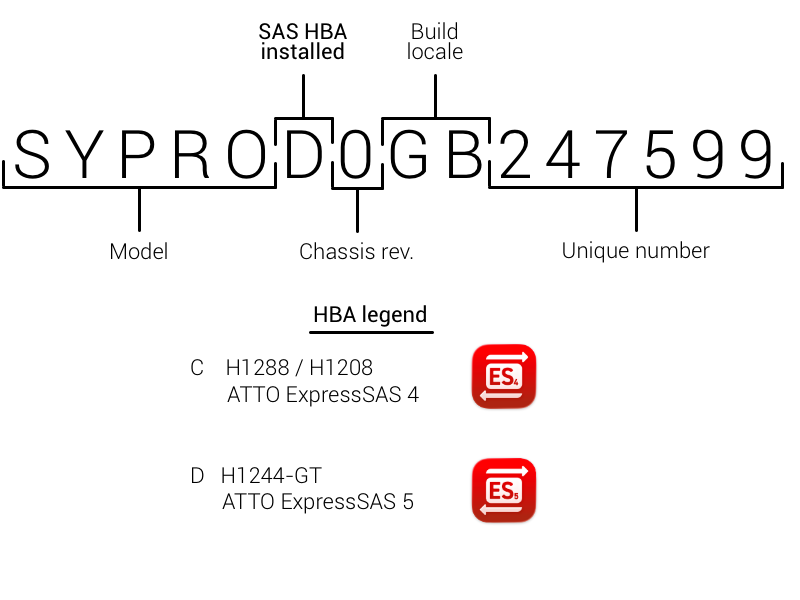
Identify the ATTO driver required by your SymplyPRO Thunderbolt product. You can identify the correct driver to activate and enable by checking your SymplyPRO Thunderbolt chassis serial number (found on the bottom of the chassis). Check the legend below to confirm which driver is required. 

Step 1 - Download SymplyATOM2
1
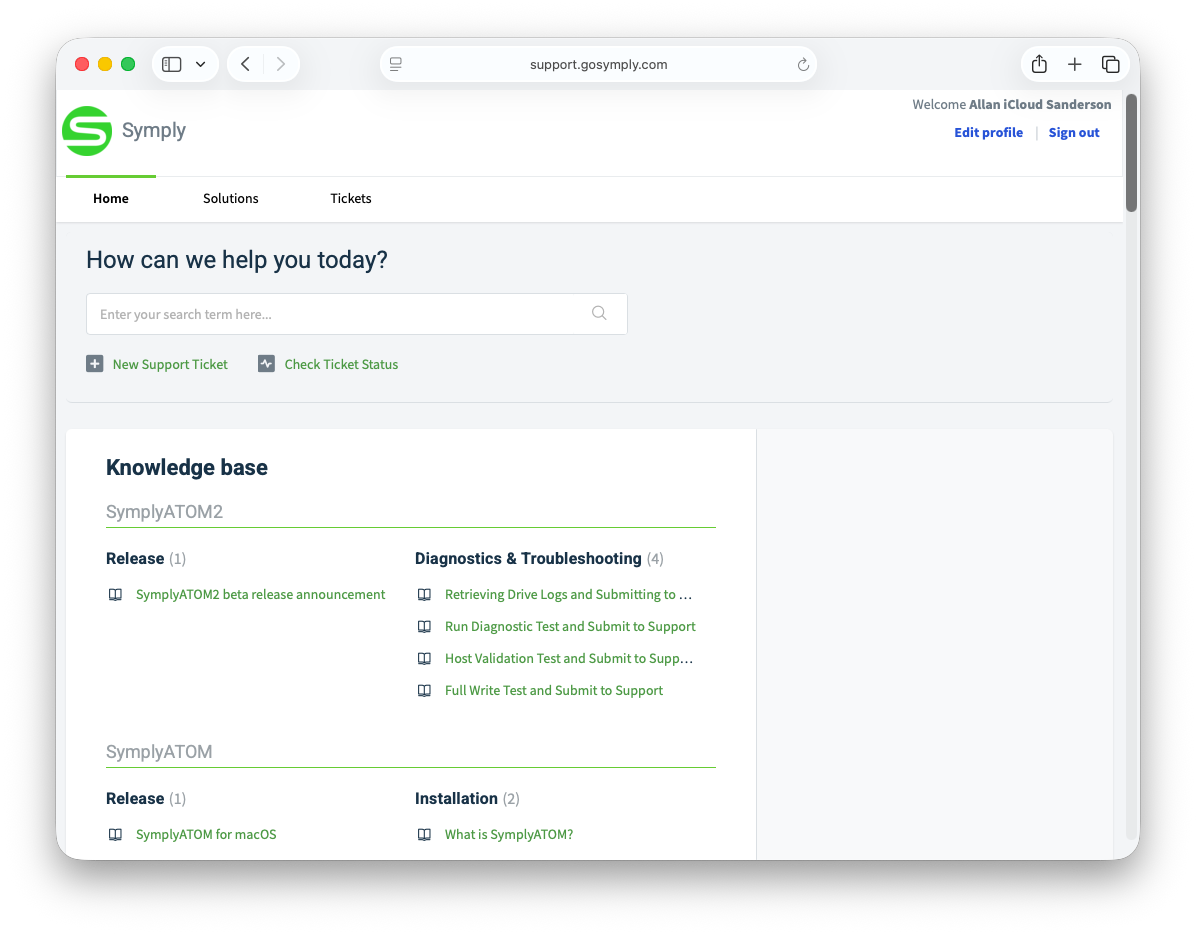
Open a browser and go to support.gosymply.com.
Symply support portal homepage showing the Knowledge Base with SymplyATOM2 and Diagnostics sections listed
The Symply Support portal. The SymplyATOM2 Knowledge Base section is visible on the Home tab.
2
Click Solutions in the top navigation, then browse to SymplyATOM2 › Release and open the SymplyATOM2 Release & Download article.
3
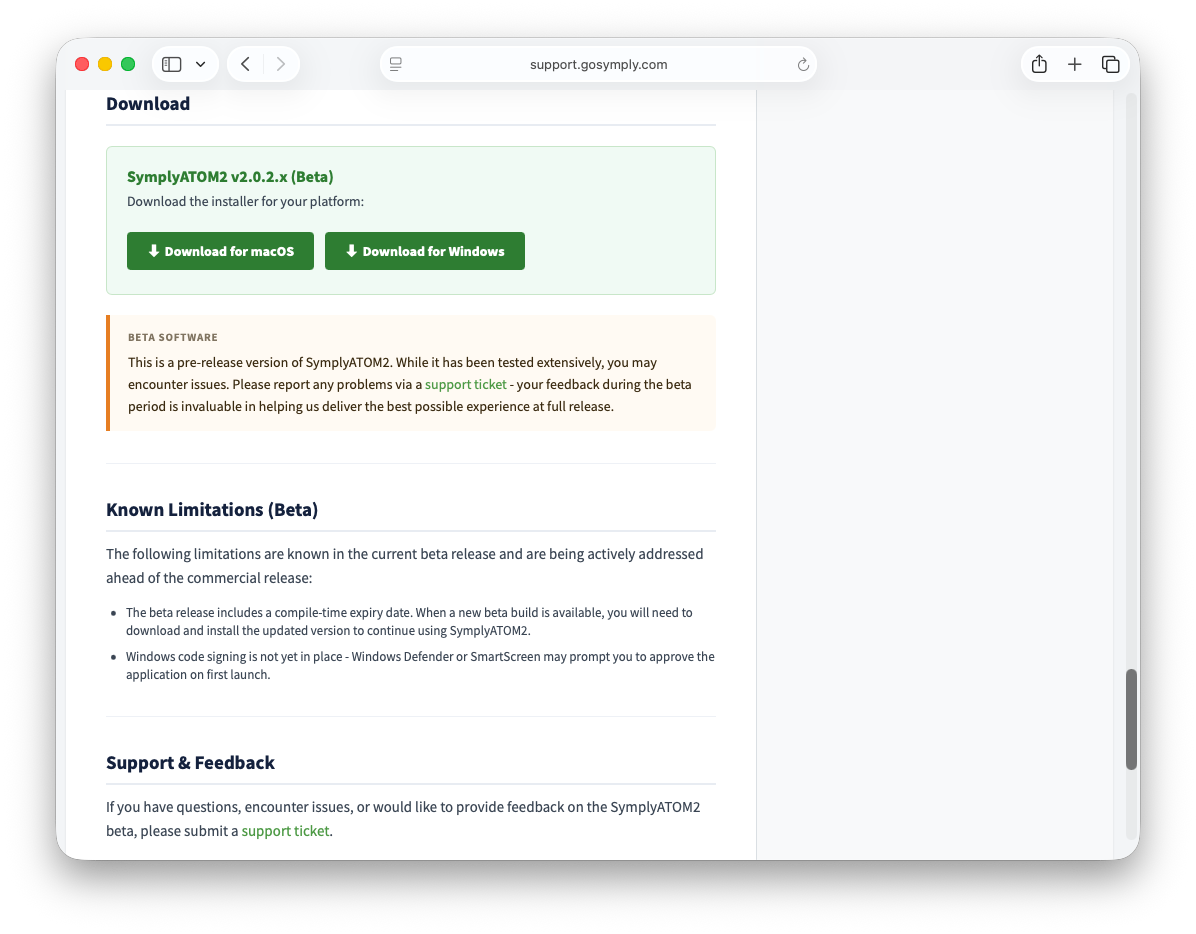
Scroll to the Download section and click Download for macOS. Save the file when your browser prompts you.
SymplyATOM2 release article Download section showing Download for macOS and Download for Windows buttons
The Download section in the release article. Click Download for macOS to save the installer disk image to your Mac.

Step 2 - Run the installer

1
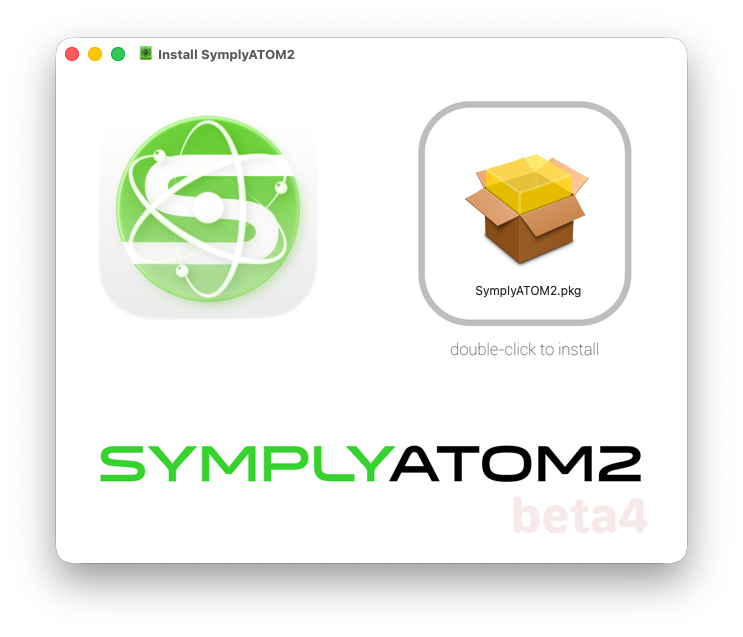
Open the downloaded .dmg file. A window will appear showing the SymplyATOM2 app icon alongside a SymplyATOM2.pkg installer file. Double-click SymplyATOM2.pkg to begin.
macOS disk image window showing the SymplyATOM2 app icon and SymplyATOM2.pkg with a 'double-click to install' label
The mounted disk image. Double-click SymplyATOM2.pkg to launch the macOS installer.
2
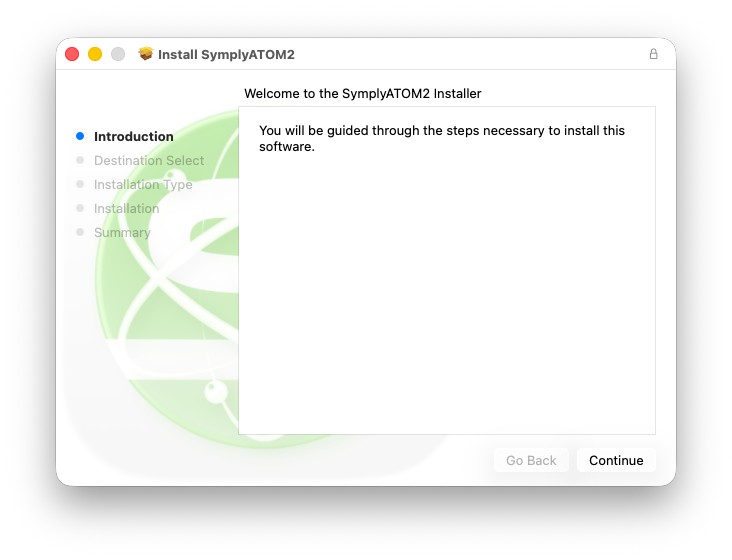
The Install SymplyATOM2 window opens at the Introduction step. Click Continue.
macOS installer Introduction screen: Welcome to the SymplyATOM2 Installer, with Continue button
The installer Introduction screen. Click Continue to proceed.
3
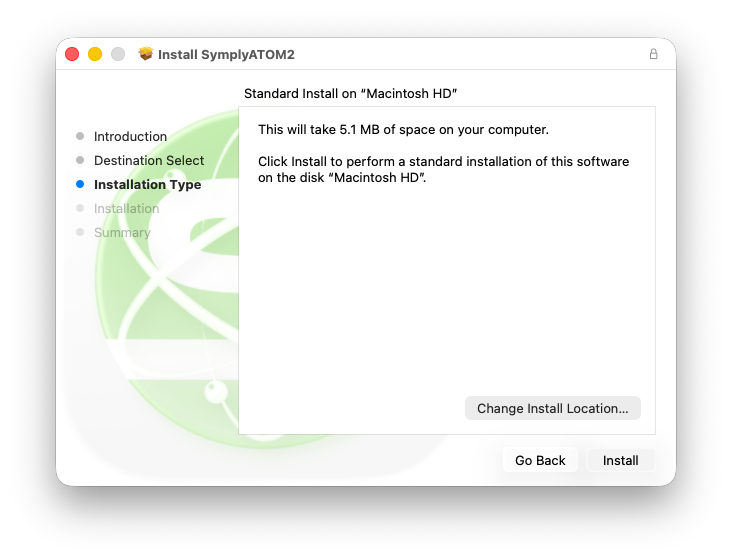
On the Installation Type screen, the installer confirms the destination disk and the space required (approximately 5 MB). Click Install. You will be prompted to enter your administrator password.
macOS installer Installation Type screen showing Standard Install on Macintosh HD — 5.1 MB — with Install button
The Installation Type screen confirms the destination disk. Click Install, then enter your administrator password when macOS prompts for it.
4
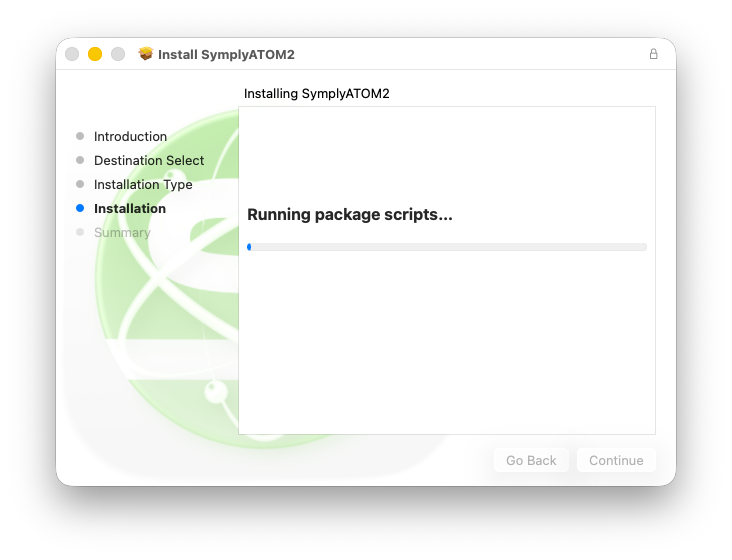
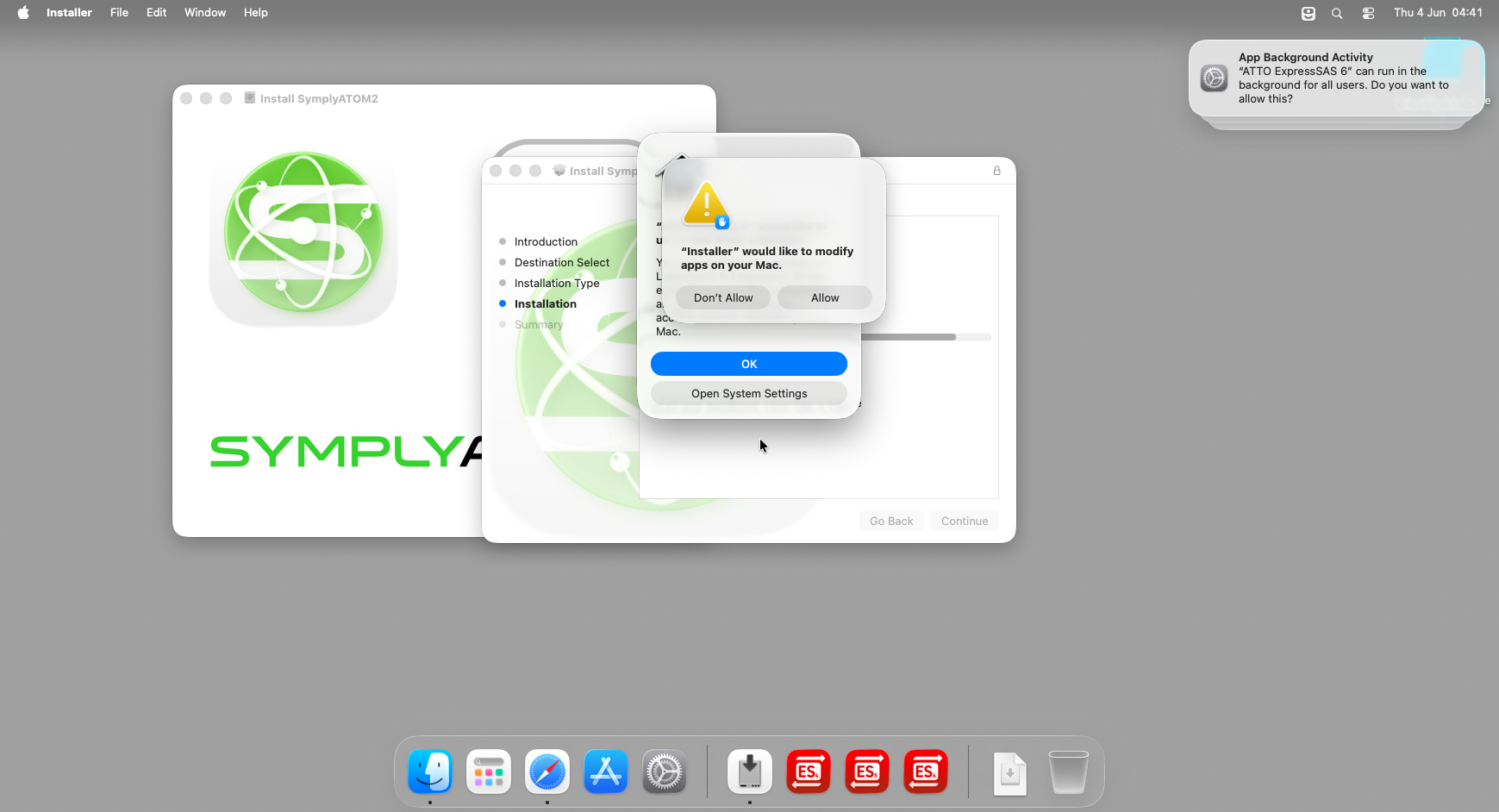
The installer will run its package scripts. This normally takes under a minute. While scripts are running, macOS will display a permission dialog asking “installer would like to modify apps on your Mac” - click Allow.
macOS installer running package scripts, progress bar visible
The installer running its package scripts. The ATTO ExpressSAS driver files are written to the system at this stage.
macOS permission dialog: 'installer would like to modify apps on your Mac' with Don't Allow and Allow buttons. An App Background Activity notification from ATTO ExpressSAS is also visible in the top-right corner.
Click Allow when macOS asks permission for the installer to modify apps. You may also see an App Background Activity notification from ATTO ExpressSAS appear in the top-right corner - this can be dismissed.

Step 3 - Approve the ATTO ExpressSAS driver

Expand only the section below that matches the Mac you are installing on. If you are not sure which macOS version you are running, click the Apple menu in the top-left of your screen and choose About This Mac to check before continuing.

macOS Tahoe and above (system extension - DEXT)

Once installation completes, a System Extension Blocked notification will appear in the top-right corner of your screen. This is expected - macOS has detected the ATTO ExpressSAS system extension (DEXT) and blocked it pending your approval.
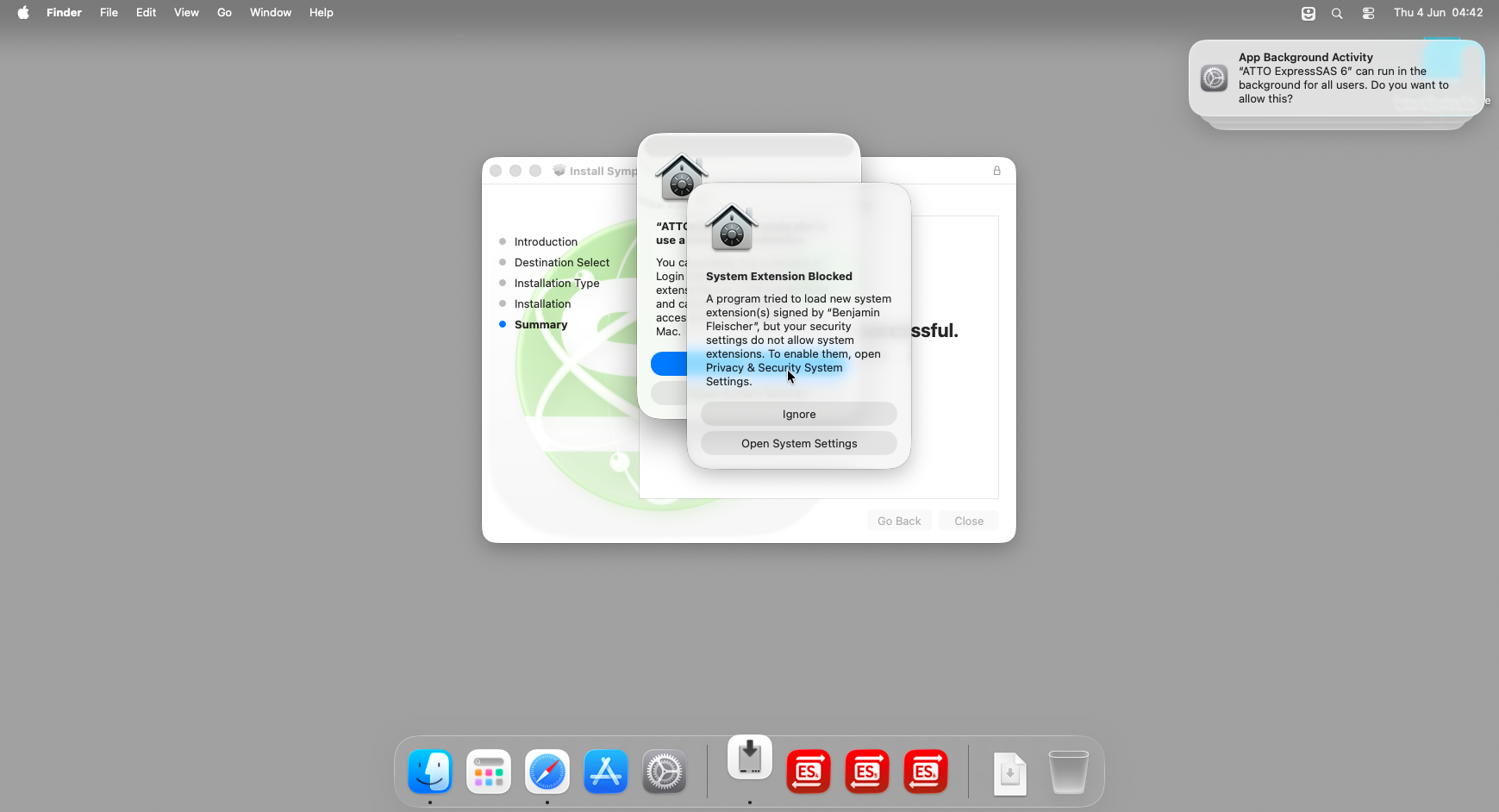
macOS System Extension Blocked notification: 'A program tried to load new system extension(s) signed by Integrated Device Technology, Inc.' with Ignore and Open System Settings buttons
The System Extension Blocked notification. Click Open System Settings to begin the approval process. Do not click Ignore.
1
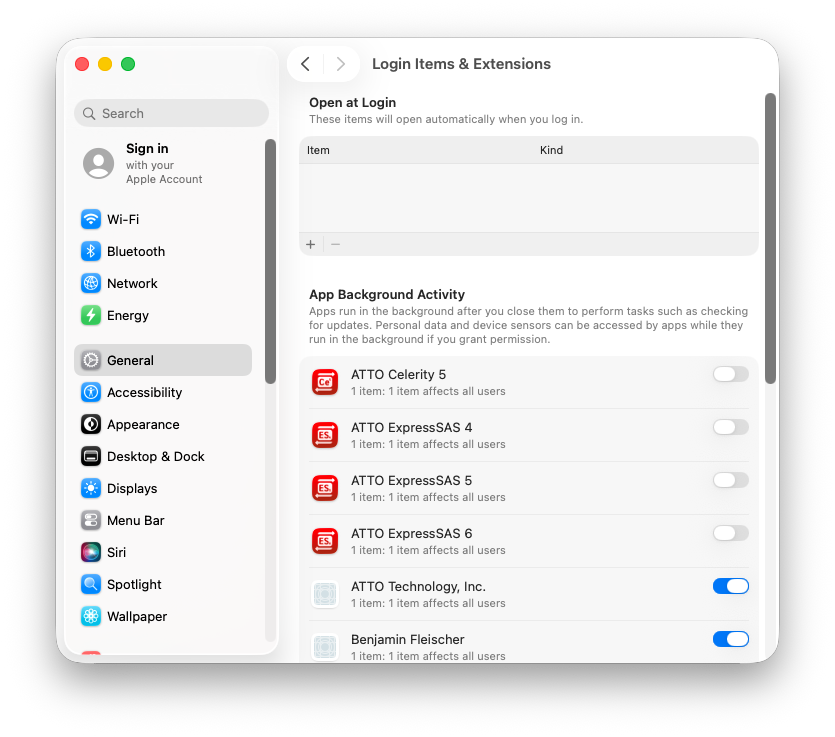
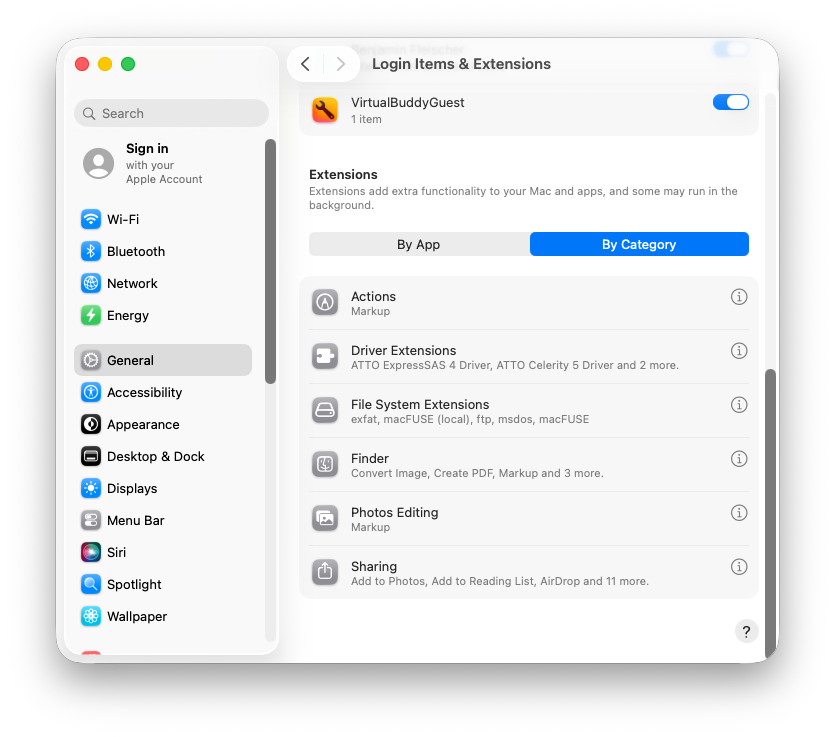
Click Open System Settings in the notification. macOS will open System Settings › General › Login Items & Extensions. Keep this window open - you will return to it in step 5 below.
System Settings — General — Login Items and Extensions, showing Driver Extensions, File System Extensions and other categories in the By Category view
System Settings opens at Login Items & Extensions. Leave this window open in the background while you complete the next steps.
If the notification was dismissedIf the System Extension Blocked notification has already disappeared, open System Settings manually and navigate to General › Login Items & Extensions.

The ATTO ExpressSAS driver requires approval in two places: first in the ATTO ExpressSAS 5 application, then confirmed in System Settings. Complete them in order.
2
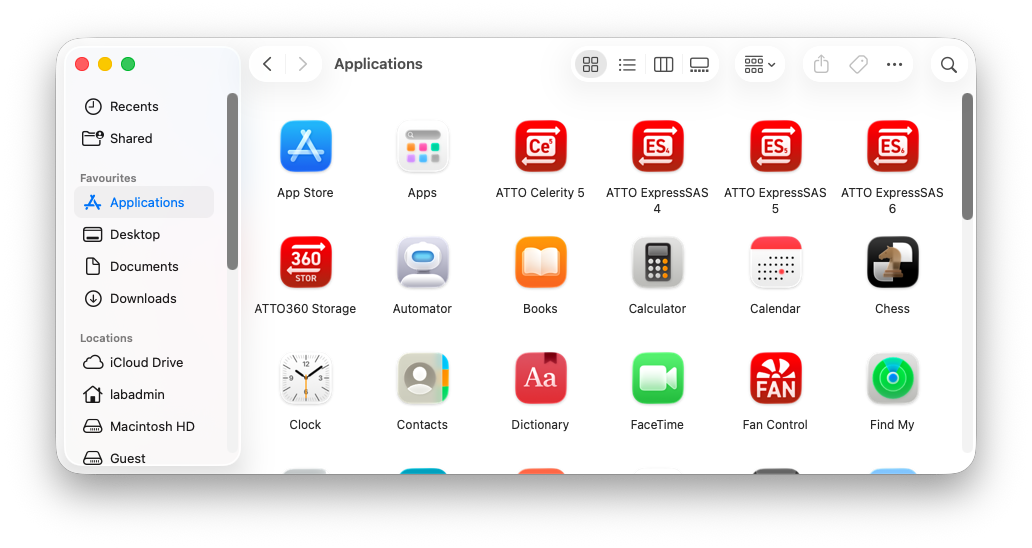
Open Finder › Applications and double-click ATTO ExpressSAS 5 to launch it.
Finder Applications folder showing ATTO ExpressSAS 4, ATTO ExpressSAS 5, and ATTO ExpressSAS 6 app icons
Open ATTO ExpressSAS 5 from the Applications folder. If you have multiple ATTO versions installed, open the one that matches your adapter model.
3
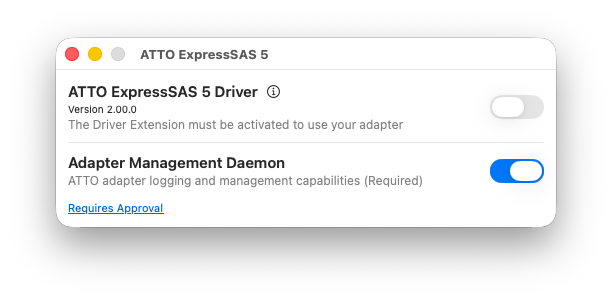
The ATTO ExpressSAS 5 window shows two items: ATTO ExpressSAS 5 Driver and Adapter Management Daemon. The driver toggle will be off, with a Requires Approval link visible below. Click the toggle next to ATTO ExpressSAS 5 Driver to enable it.
ATTO ExpressSAS 5 app window showing the driver toggle in the off position and a Requires Approval link below
The driver toggle is off and Requires Approval is shown. Enable the toggle to request driver activation.
4
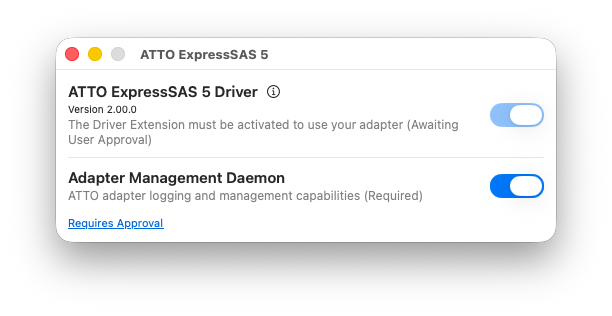
The toggle will turn blue and the status will change to “Awaiting User Approval”. The driver request has been submitted - macOS now needs a final confirmation in System Settings before the extension can load.
ATTO ExpressSAS 5 app with the driver toggle enabled, status showing Awaiting User Approval
After enabling the toggle, the status changes to Awaiting User Approval. Proceed to System Settings to finalise.
5
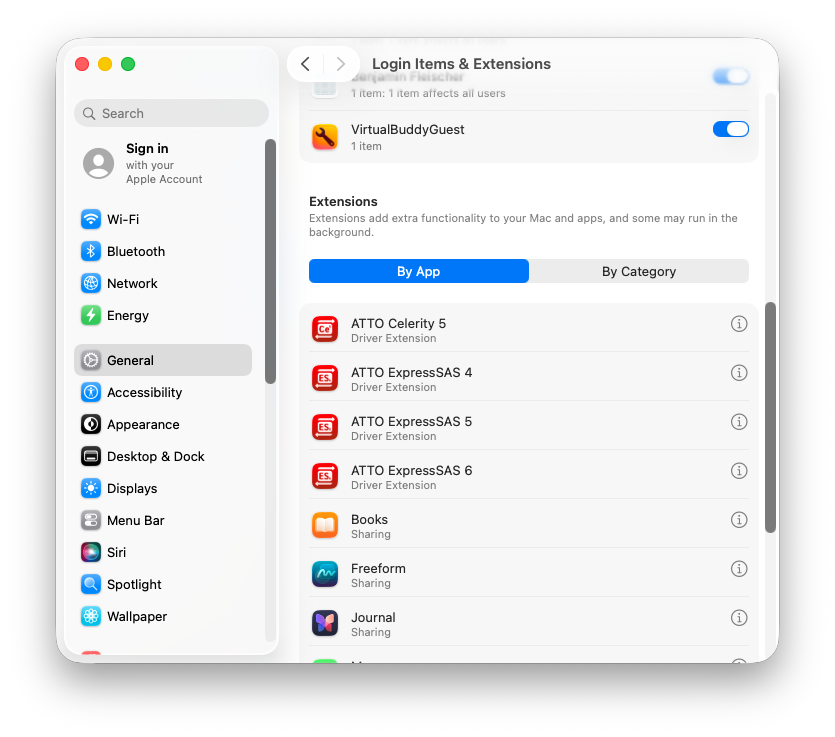
Return to the System Settings › General › Login Items & Extensions window you left open earlier. Click By App to switch to the app view.
System Settings Login Items and Extensions in By App view, with ATTO ExpressSAS 5 listed as a Driver Extension
The By App view groups extensions by application. Scroll down to find ATTO ExpressSAS 5 listed as a Driver Extension.
6
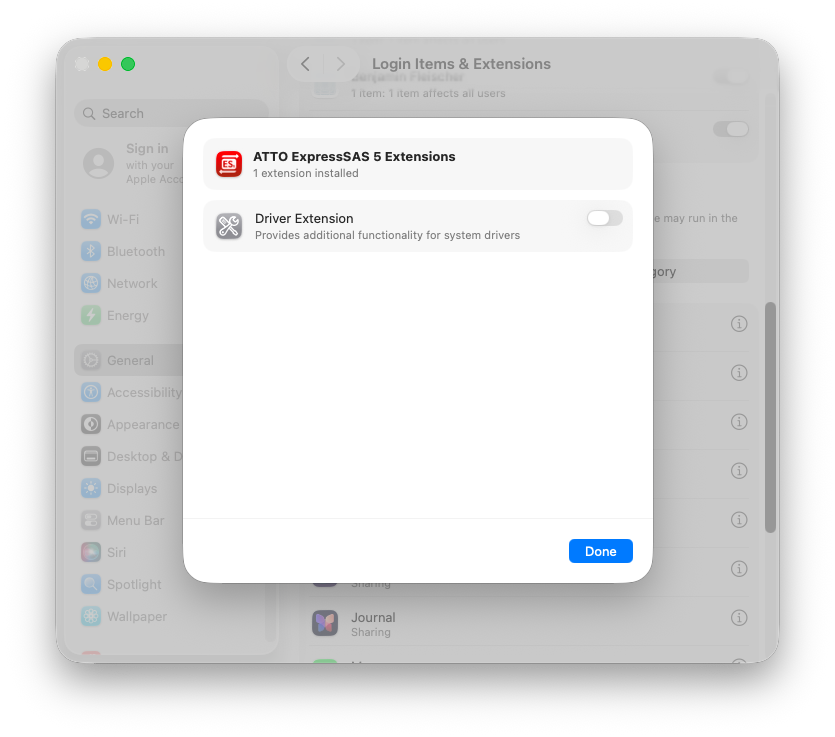
Click the info button to the right of ATTO ExpressSAS 5 in the Driver Extensions list. A sheet will open showing the ATTO ExpressSAS 5 Extensions detail, with a Driver Extension toggle currently off.
macOS sheet showing ATTO ExpressSAS 5 Extensions with Driver Extension toggle in the off position and a Done button
The ATTO ExpressSAS 5 Extensions detail sheet. The Driver Extension toggle is currently off.
7
Enable the Driver Extension toggle. It will turn blue. Click Done to confirm.
ATTO ExpressSAS 5 Extensions sheet with Driver Extension toggle now enabled (blue) and Done button
Enable the Driver Extension toggle, then click Done. macOS will load the ATTO ExpressSAS driver immediately.
macOS Sequoia and earlier (kernel extension - KEXT)
Screenshots for this section have not been captured yet. The steps below mirror the equivalent macFUSE approval process (see step 4) as a placeholder and will be updated with ATTO-specific screenshots once available.

Apple does not support the DriverKit-based ATTO ExpressSAS system extension on macOS Sequoia or earlier. On these macOS versions the installer instead installs a legacy kernel extension (KEXT) for the ATTO driver, approved through Privacy & Security rather than through the ATTO ExpressSAS 5 app and Login Items & Extensions.

Once installation completes, a System Extension Blocked or System Extension Updated notification will appear for the ATTO driver. Click Open System Settings in the notification. System Settings will open at Privacy & Security.

If the notification was dismissedOpen System Settings › Privacy & Security manually and scroll down to the Security section at the bottom of the screen.
1
In Privacy & Security, scroll to the Security section at the bottom of the screen. A message will appear stating “System software from developer ‘Integrated Device Technology, Inc.’ was blocked from loading.” Click Allow.
2
A Privacy & Security authentication dialog will appear with the message “Privacy & Security is trying to modify your system settings.” Enter the password for a local macOS Administrator account and click Modify Settings.
3
A second dialog may appear with the message “Privacy & Security needs to authenticate to continue.” If so, enter your password again and click OK.
4
macOS will prompt you to restart. Save any open work in other applications, then click Restart. Your Mac may restart more than once while the ATTO driver loads.
A restart is requiredThe ATTO driver cannot be loaded without restarting. Do not skip this step - SymplyATOM2 will not be able to detect your tape drive until the restart is complete.

After your Mac restarts, the ATTO extension will appear in System Settings › Privacy & Security under the list of allowed system software, confirming it is active.


Step 4 - Approve the macFUSE file system extension

The SymplyATOM2 installer also includes macFUSE - the file system extension that enables LTFS (Linear Tape File System) support on macOS. macFUSE is signed by developer Benjamin Fleischer and requires a separate approval through Privacy & Security, distinct from the ATTO driver approval completed in Step 3.

Once the ATTO driver approval is complete, a System Extension Blocked or System Extension Updated notification will appear for macFUSE. Click Open System Settings in the notification. System Settings will open at Privacy & Security.

If the notification was dismissedOpen System Settings › Privacy & Security manually and scroll down to the Security section at the bottom of the screen.
1
In Privacy & Security, scroll to the Security section at the bottom of the screen. A message will appear stating “System software from developer ‘Benjamin Fleischer’ was blocked from loading.” Click Allow.
2
A Privacy & Security authentication dialog will appear with the message “Privacy & Security is trying to modify your system settings.” Enter the password for a local macOS Administrator account and click Modify Settings.
3
A second dialog may appear with the message “Privacy & Security needs to authenticate to continue.” If so, enter your password again and click OK.
4
macOS will prompt you to restart. Save any open work in other applications, then click Restart. Your Mac may restart more than once while macFUSE loads.
A restart is requiredmacFUSE cannot be loaded without restarting. Do not skip this step - SymplyATOM2 will not be able to perform LTFS operations until the restart is complete.

After your Mac restarts, macFUSE will appear in System Settings › General › Login Items & Extensions under File System Extensions, confirming it is active.

System Settings Login Items and Extensions by Category view, showing macFUSE listed under File System Extensions
Once approved and after the restart, macFUSE appears under File System Extensions in Login Items & Extensions, confirming the extension is active.

Step 5 - Verify and launch

1
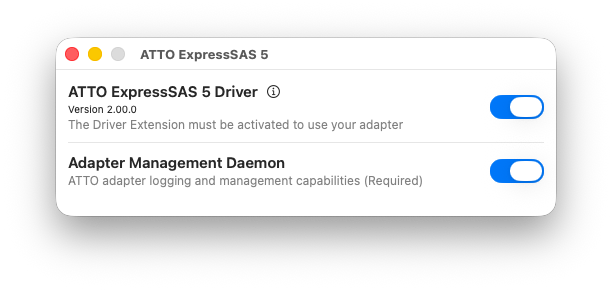
macOS Tahoe and above: return to the ATTO ExpressSAS 5 app. Both ATTO ExpressSAS 5 Driver and Adapter Management Daemon should now show blue (enabled) toggles, with no Requires Approval link visible. This confirms the driver is active. macOS Sequoia and earlier: there is no app toggle to check - confirm instead that the ATTO extension is listed as allowed under System Settings › Privacy & Security.
ATTO ExpressSAS 5 app showing both Driver and Adapter Management Daemon toggles enabled with no Requires Approval link
Both toggles enabled and no Requires Approval message - the ATTO ExpressSAS driver is active and SymplyATOM2 can now detect your LTO tape drive. (macOS Tahoe and above only.)
2
Open SymplyATOM2 from your Applications folder. If your ATTO ExpressSAS HBA and LTO tape drive are connected and powered on, the drive will appear in the Drives panel on the left.
Installation completeSymplyATOM2 is installed, the ATTO ExpressSAS driver is active, and macFUSE is loaded. Both approvals are permanent - you will not need to repeat this process after a restart unless either driver is updated.

Frequently asked questions

Why does macOS block the ATTO driver?

macOS requires explicit user consent before loading third-party system extensions and kernel extensions. This is a security feature that has been strengthened across successive macOS releases. The ATTO ExpressSAS driver is a legitimate, signed extension - it is blocked only because it has not previously been approved on this Mac, not because it is unsafe.

Why did my installer put in a KEXT instead of a DEXT?

Apple only supports the modern DriverKit-based ATTO ExpressSAS driver (DEXT) on macOS Tahoe (26) and later. On macOS Sequoia (15) and earlier, DEXTs are not supported, so the SymplyATOM2 installer falls back to a legacy kernel extension (KEXT) for the ATTO driver instead. Which one your Mac received depends entirely on the macOS version you were running at install time - see Step 3.

My Mac has Apple Silicon and the toggle won’t stay enabled - what do I do?

This applies to macOS Sequoia and earlier (the KEXT installation path), and to macFUSE on any macOS version. Apple Silicon Macs (M1–M5) enforce Full Security by default, which blocks third-party kernel extensions from loading regardless of the Privacy & Security approval step. You must first boot into Recovery Mode and use the Startup Security Utility to lower the security policy. Full instructions are here: Enable KEXT Driver Support - macOS. This step is not needed for the ATTO driver itself on macOS Tahoe and above, since the DEXT used there is not a kernel extension.

Do I need to keep the ATTO ExpressSAS 5 app open?

No. This question only applies if you followed the macOS Tahoe and above section in Step 3 - the ATTO ExpressSAS 5 app is only needed there during the initial driver approval. Once approved, the driver runs as a background system service - the ATTO app does not need to remain open for SymplyATOM2 to communicate with your tape drive. If you followed the macOS Sequoia and earlier section instead, there is no ATTO app toggle to check at all - approval is confirmed entirely through Privacy & Security.

My tape drive does not appear in SymplyATOM2 after installation

Check the following in order:

  • macOS Tahoe and above: open the ATTO ExpressSAS 5 app and confirm both toggles are blue with no Requires Approval link. If approval is still pending, repeat the relevant steps in Step 3.
  • macOS Sequoia and earlier: open System Settings › Privacy & Security and confirm the ATTO driver is listed as allowed, not blocked. If it is still blocked, repeat the relevant steps in Step 3.
  • On Apple Silicon, confirm that KEXT support has been enabled in Recovery Mode if you are on the KEXT path. See Enable KEXT Driver Support - macOS.
  • Verify that the ATTO ExpressSAS HBA is correctly seated and the tape drive is powered on before launching SymplyATOM2.
  • Try restarting your Mac - some driver approvals require a restart to take full effect.

If the drive still does not appear after checking all of the above, submit a support ticket.

Will the DEXT or KEXT approval survive a macOS update?

Generally yes. macOS retains extension approvals across standard system updates. However, a major macOS version upgrade (e.g. Sonoma to Sequoia) or a reinstall of the ATTO driver may require you to repeat the approval step. If you upgrade from macOS Sequoia (or earlier) to macOS Tahoe (or later), your Mac switches from the KEXT installation path to the DEXT installation path entirely, so you will need to follow the macOS Tahoe and above section in Step 3 again, even though you already approved the KEXT before upgrading. The Reduced Security setting on Apple Silicon is set once in Recovery Mode and does not need to be repeated after a standard macOS update.


If you have any questions please submit a [support ticket]