
Download and install SymplyATOM2 on Windows using the combined Setup installer, which automatically installs all required drivers and tools in a single pass.
TABLE OF CONTENTS
Overview
The SymplyATOM2 Windows installer is a single .exe file that installs everything SymplyATOM2 needs in one pass. You do not need to download or install any drivers or tools separately. The following components are installed automatically, only if not already present on your system:
| Component | Purpose | Restart required |
|---|---|---|
| Visual C++ 2015–2022 Runtime | Required by SymplyATOM2 and associated tools | No |
| ATTO360 Storage Suite & ExpressSAS driver | HBA driver that gives Windows access to the connected LTO tape drive | Yes |
| IBM Tape Diagnostic Tool (ITDT) | Low-level tape drive diagnostics engine used by SymplyATOM2 | No |
| IBM LTFS SDE | Linear Tape File System driver, required for LTFS tape operations | Yes |
| SymplyATOM2 | The SymplyATOM2 application | No |
A Windows restart is recommended after installation. The ATTO ExpressSAS and IBM LTFS drivers both require a restart before they become fully active. SymplyATOM2 will launch immediately after the installer finishes, but your tape drive will not be detected until Windows has been restarted.
Before you begin
| Requirement | Details |
|---|---|
| Windows version | Windows 10 (version 1809) or later - 64-bit only |
| User account | Administrator privileges required - the installer will prompt via UAC |
| Settings | Disable Sleep / Energy Saving |
| Hardware | Symply LTO tape drive connected and powered on |
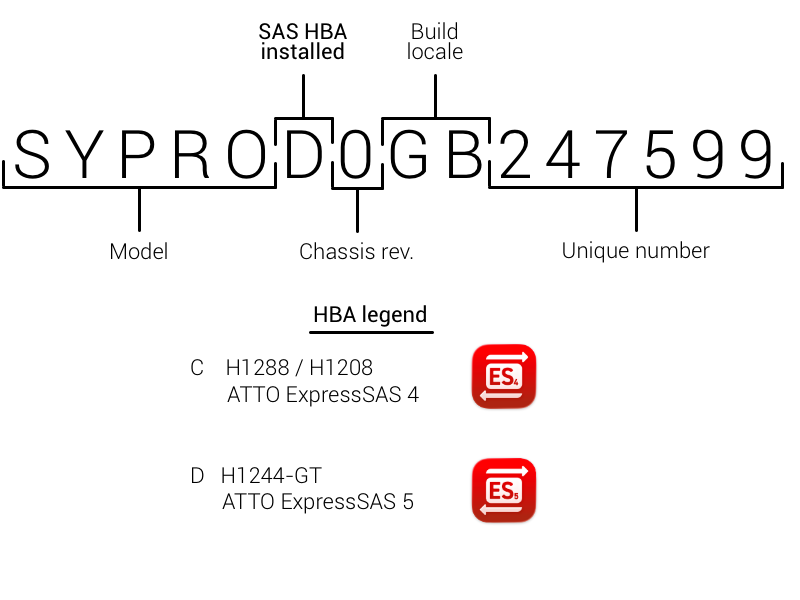
Identify the ATTO driver required by your SymplyPRO Thunderbolt product. You can identify the correct driver to activate and enable by checking your SymplyPRO Thunderbolt chassis serial number (found on the bottom of the chassis). Check the legend below to confirm which driver is required.
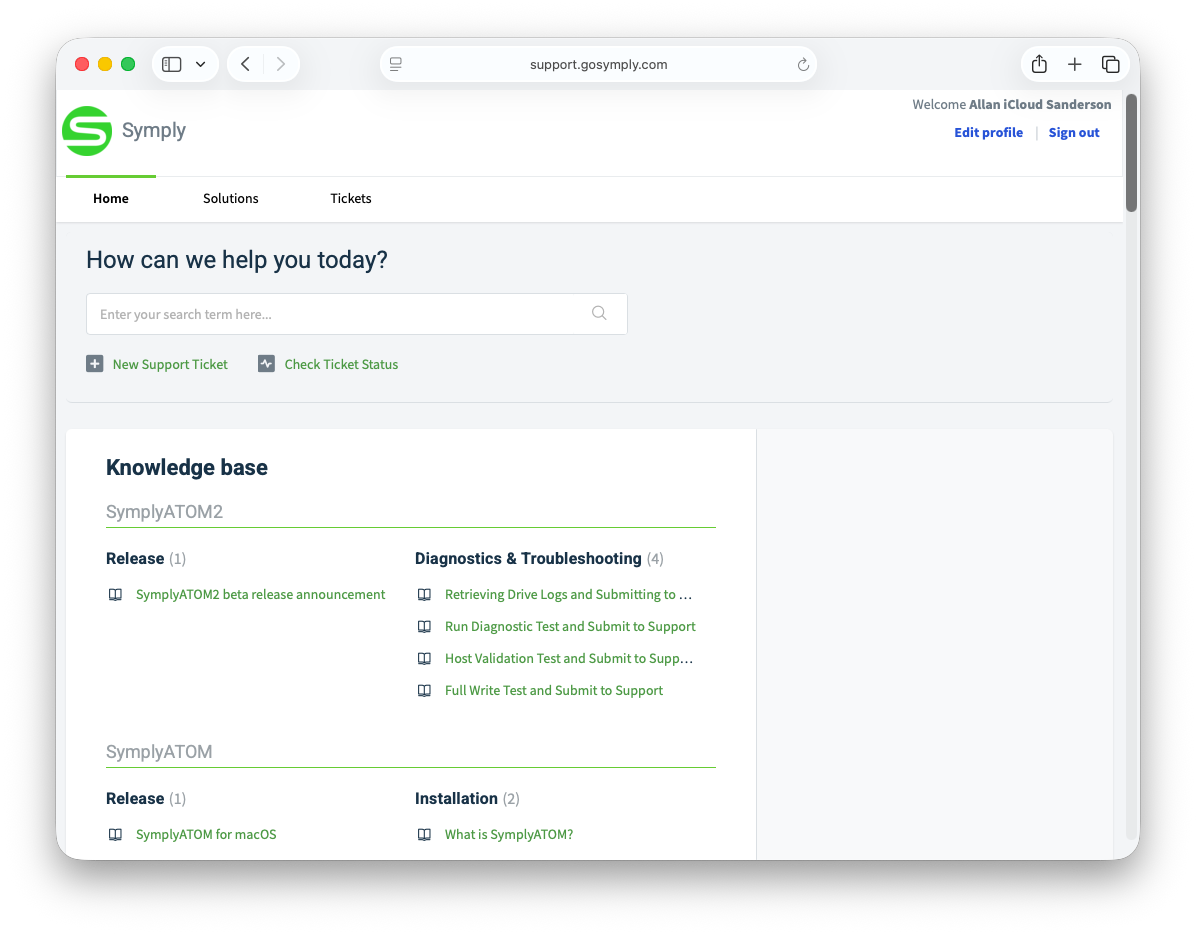
Step 1 - Download SymplyATOM2
SymplyATOM2-x.x.x.xx-Setup.exe.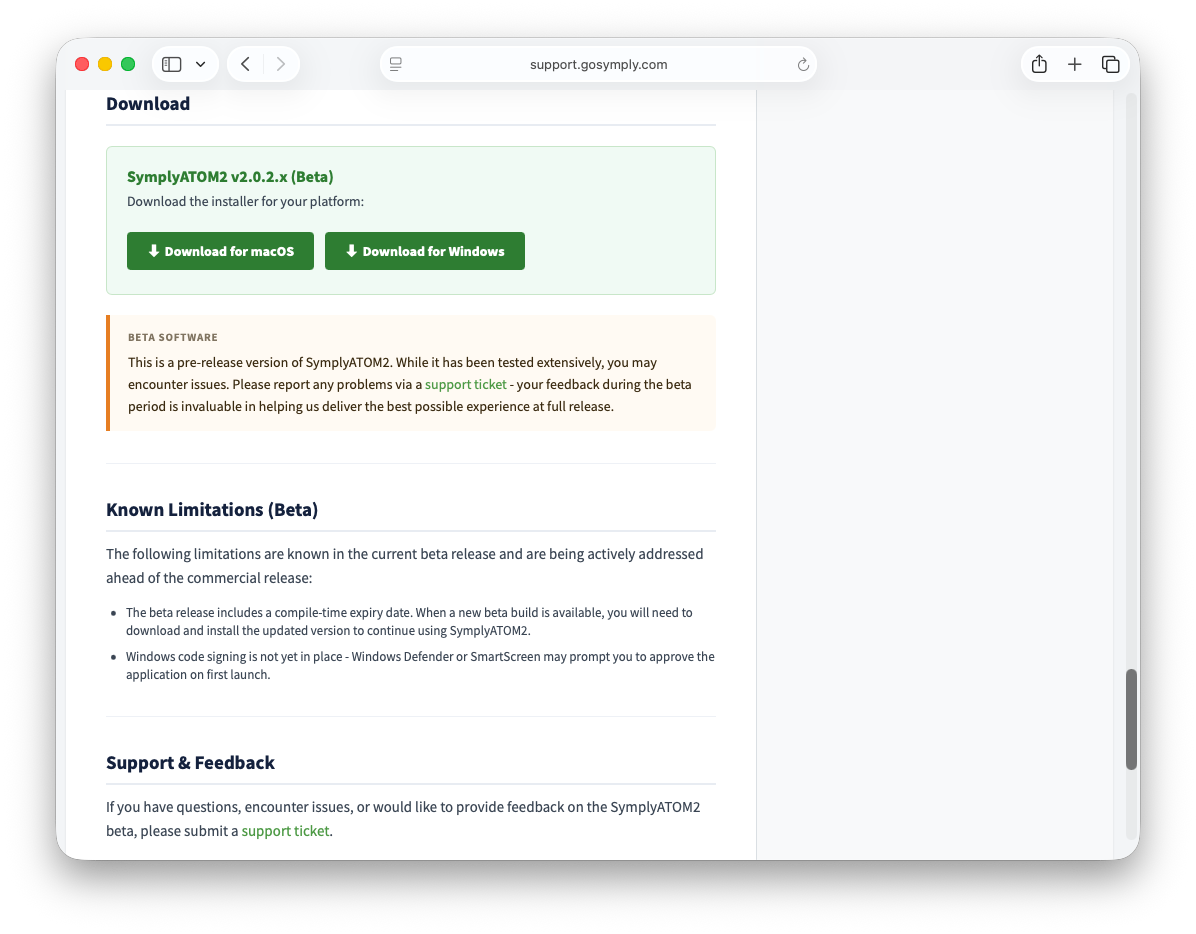
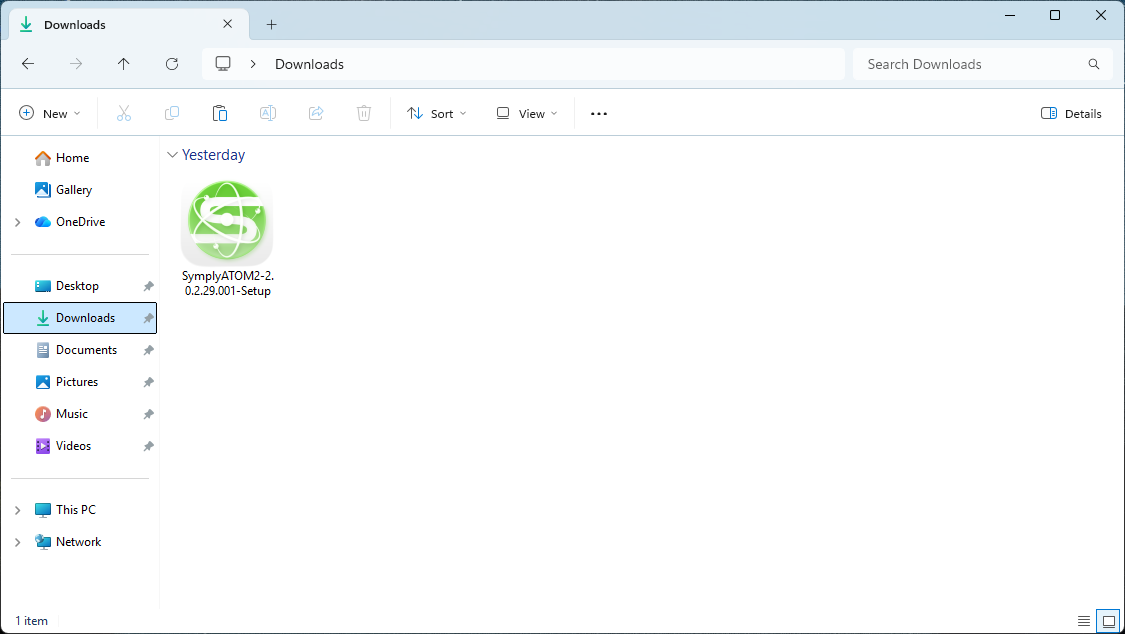
Step 2 - Run the installer
Step 3 - Allow the UAC prompt
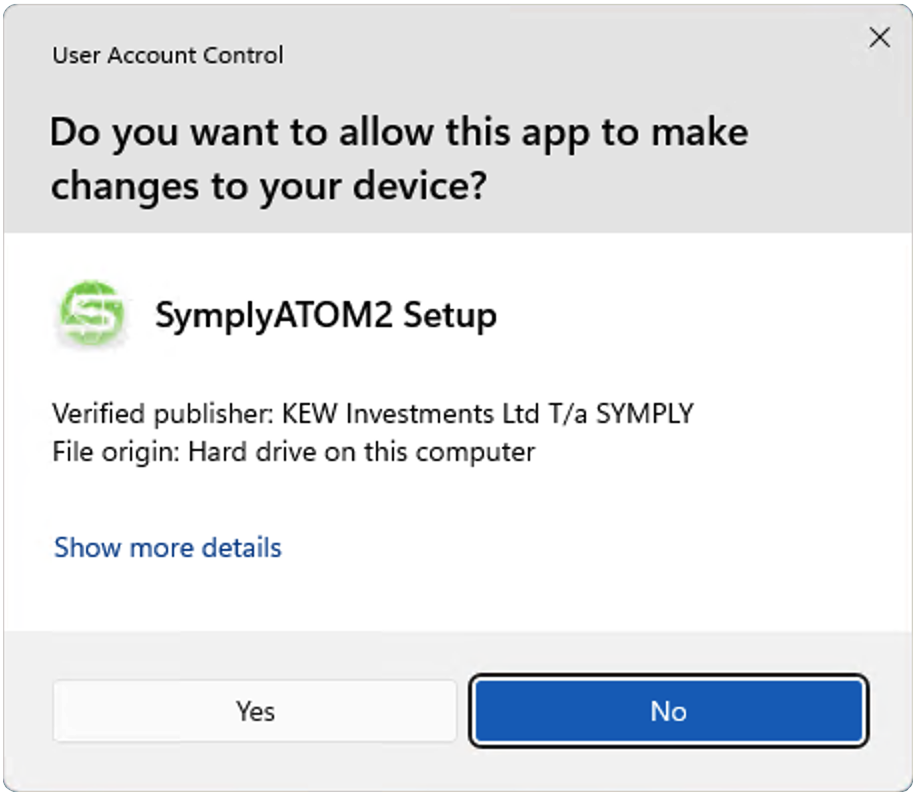
Windows will display a User Account Control prompt asking “Do you want to allow this app to make changes to your device?” The installer requires administrator privileges to install drivers and system components. Because the installer is signed, the prompt will show it coming from a verified publisher rather than “Unknown”.
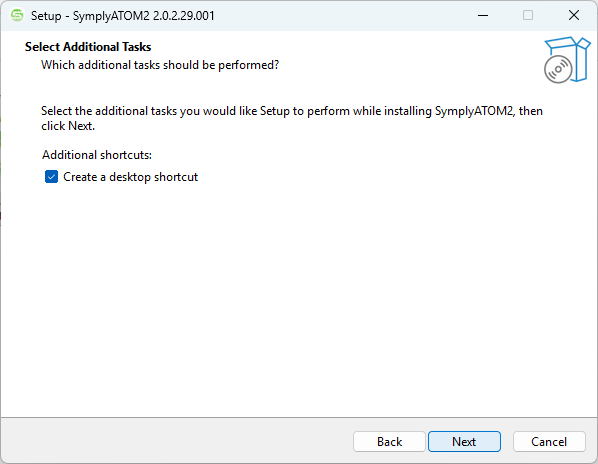
Step 4 - Complete the Setup Wizard
C:\Program Files\Symply\SymplyATOM2. Accept the default or choose a different location, then click Next.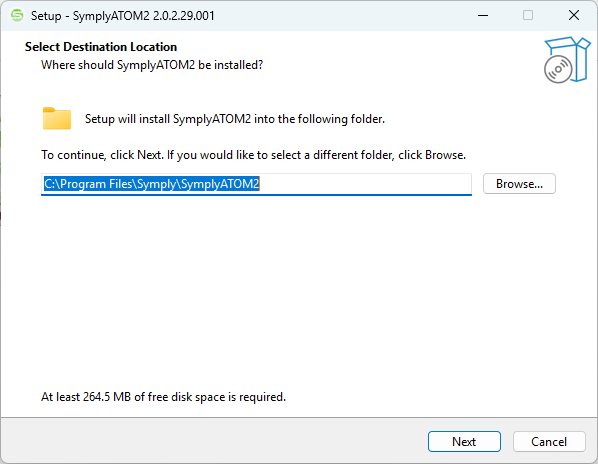
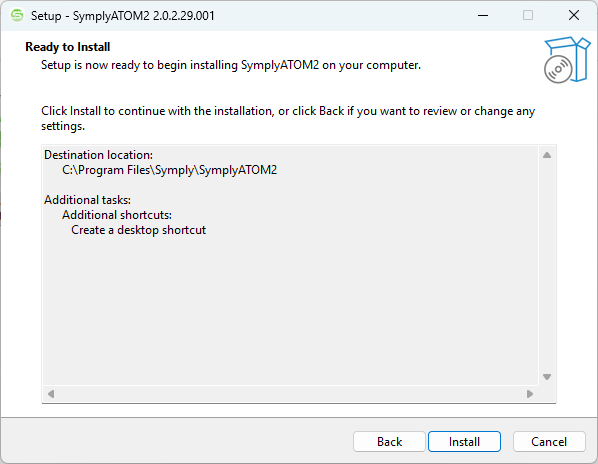
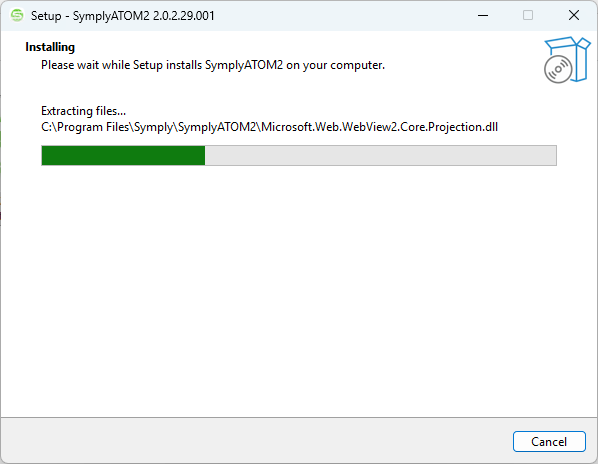
| Status message | What is happening |
|---|---|
| Installing Visual C++ Runtime... | Installing the Microsoft VC++ 2015–2022 runtime libraries required by SymplyATOM2 |
| Installing ATTO ExpressSAS driver... | Installing the ATTO360 Storage Suite and ExpressSAS HBA driver. This enables Windows to detect and communicate with your LTO tape drive. |
| Installing IBM Tape Diagnostic Tool... | Installing IBM ITDT, the diagnostics engine that powers SymplyATOM2's Run Test and Host Validation features |
| Installing IBM LTFS (this may take a moment)... | Installing the IBM LTFS filesystem driver. This step may take longer than the others. |
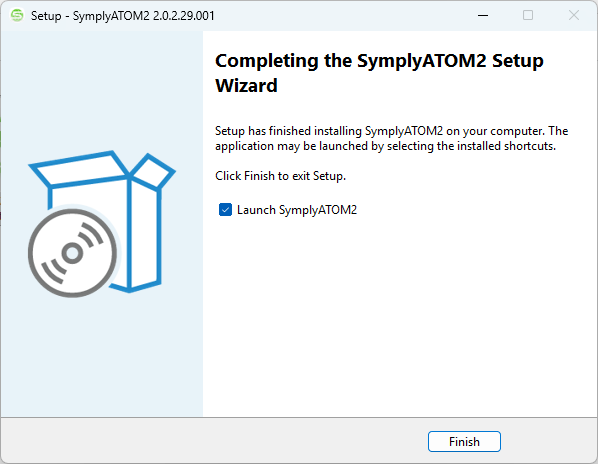
Step 5 - Restart Windows
If the ATTO ExpressSAS driver or IBM LTFS were installed during Step 4, a dialog will appear after the wizard closes informing you that a restart is recommended. SymplyATOM2 will launch, but your tape drive will not be detected until Windows has restarted.
Step 6 - Verify and launch
Frequently asked questions
Will Windows show a security warning when I run the installer?
No. As of build 2.0.2.30, both the SymplyATOM2 installer and the installed application are digitally signed with a Microsoft Trusted Signing certificate. Windows Defender SmartScreen and the UAC elevation prompt will recognise SymplyATOM2 as coming from a verified publisher, so you should not see a security warning or an “Unknown publisher” prompt. If you see one anyway, you may be running an older installer downloaded before this build - re-download the current version from the SymplyATOM2 Release & Download article and try again.
Do I need to install any drivers or tools separately?
No. The SymplyATOM2 Setup installer includes everything required: the VC++ runtime, ATTO360 Storage Suite and ExpressSAS driver, IBM ITDT, and IBM LTFS. Each component is only installed if it is not already present, so running the installer on a machine that already has some components will not reinstall or downgrade them.
My tape drive does not appear in SymplyATOM2 after installation
Check the following in order:
- Confirm that Windows has been fully restarted after installation. The ATTO ExpressSAS driver does not become active until after a restart.
- Verify that the ATTO ExpressSAS HBA is correctly seated and that the tape drive is powered on before launching SymplyATOM2.
- Open Device Manager (right-click the Start button › Device Manager) and look for the ATTO ExpressSAS adapter under Storage controllers. If it shows a warning icon, the driver may not have installed correctly - try running the Setup installer again.
- Check that the tape drive is visible in Device Manager under Tape drives. If it is absent, the issue is with the HBA or cabling rather than the software.
If the drive still does not appear after checking all of the above, submit a support ticket.
What version of Windows is required?
SymplyATOM2 requires Windows 10 version 1809 (October 2018 Update) or later, 64-bit. 32-bit Windows is not supported. The installer will refuse to run on unsupported versions.
Can I run SymplyATOM2 without restarting after installation?
SymplyATOM2 will launch and open immediately after installation without a restart. However, the ATTO ExpressSAS driver and IBM LTFS filesystem driver both require a Windows restart to become fully active. Until you restart, the Drives panel will remain empty and no tape drive operations will be available.
Will the drivers survive a Windows update?
Yes. Standard Windows updates do not remove or disable third-party drivers installed via their own installers. Major Windows feature updates (e.g. upgrading from Windows 10 to Windows 11) may prompt a driver compatibility check but will not remove installed components. If a Windows update causes the tape drive to stop appearing, run the SymplyATOM2 Setup installer again to repair or reinstall the affected components.
If you have any questions please submit a [support ticket]