
Download and install SymplyATOM2 on macOS, then approve the ATTO ExpressSAS system extension so SymplyATOM2 can communicate with your LTO tape drive.
TABLE OF CONTENTS
Overview
SymplyATOM2 communicates with your LTO tape drive through an ATTO ExpressSAS host bus adapter. Installing SymplyATOM2 on macOS is a two-part process: first, the SymplyATOM2 application is installed using the standard macOS PKG installer; then, you must activate and approve the ATTO ExpressSAS driver before macOS will allow it to load.
The approval steps you need to follow depend on which version of macOS you are running, because Apple only supports the modern ATTO driver format on newer macOS releases:
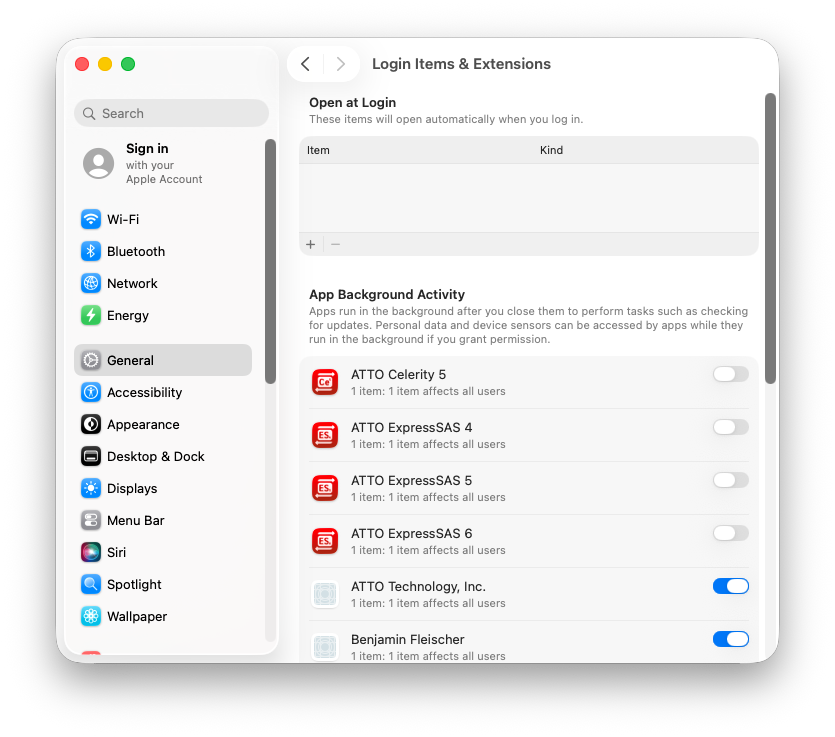
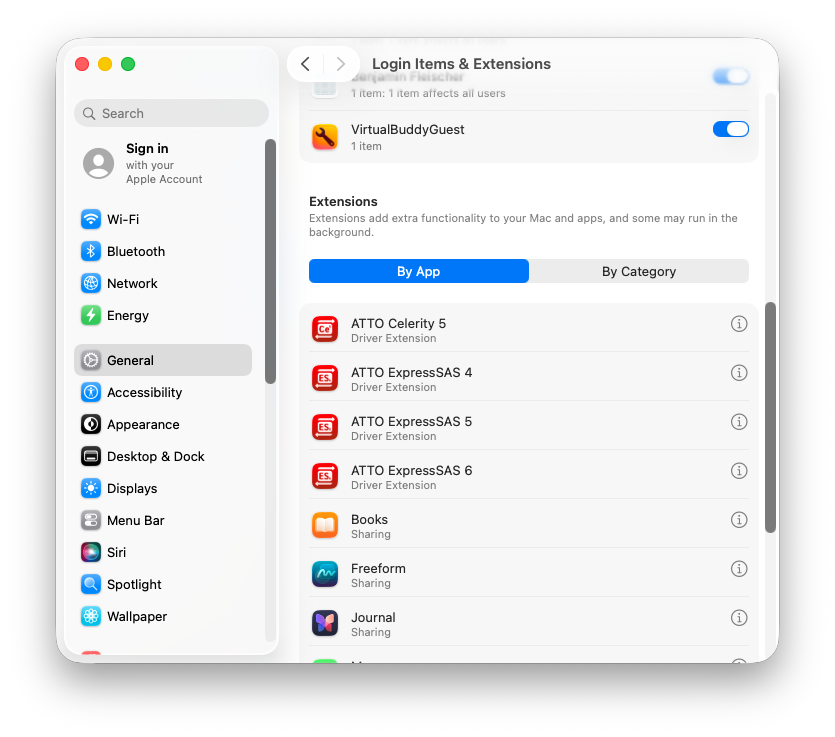
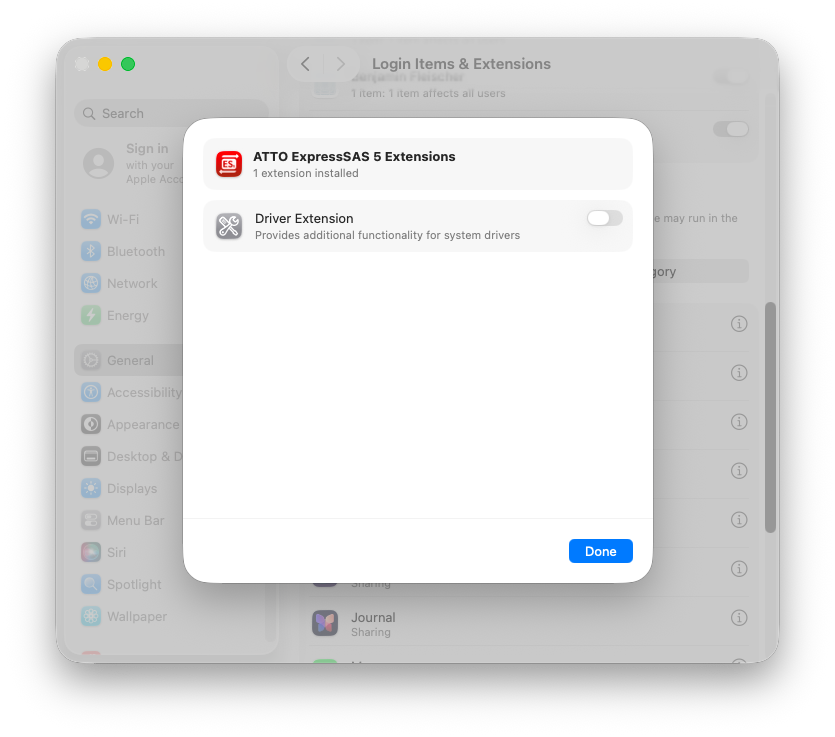
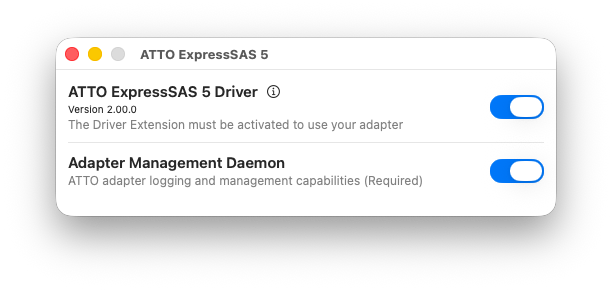
- macOS Tahoe (26) and later - the installer activates the ATTO ExpressSAS system extension (DEXT), a DriverKit driver approved by enabling a toggle in the ATTO ExpressSAS 5 application and then confirming that approval in System Settings › General › Login Items & Extensions.
- macOS Sequoia (15) and earlier - DEXTs are not supported, so the installer instead installs a legacy kernel extension (KEXT) for the ATTO driver, approved through System Settings › Privacy & Security in the same way as macFUSE.
Step 3 below is split into two collapsible sections - expand the one that matches your macOS version.
SAS drives connected via a non-ATTO HBA you will need to install correct macOS drivers for your chosen HBA.
Full instructions: Enable KEXT Driver Support - macOS
Before you begin
| Requirement | Details |
|---|---|
| macOS version | macOS Sonoma (14) or later. Whether the ATTO driver installs as a DEXT or a KEXT depends on whether you are on macOS Tahoe (26) and later or macOS Sequoia (15) and earlier - see Step 3. |
| User account | Administrator privileges required for installation and extension approval |
| Settings | Disable Sleep / Energy Saving |
| Hardware | Symply LTO tape drive connected and powered on |
| Apple Silicon | Apple Silicon Macs on macOS Sequoia or earlier, and Apple Silicon Macs relying on macFUSE on any macOS version, must enable KEXT support in Recovery Mode before proceeding. Not required for the ATTO DEXT on macOS Tahoe and above. |
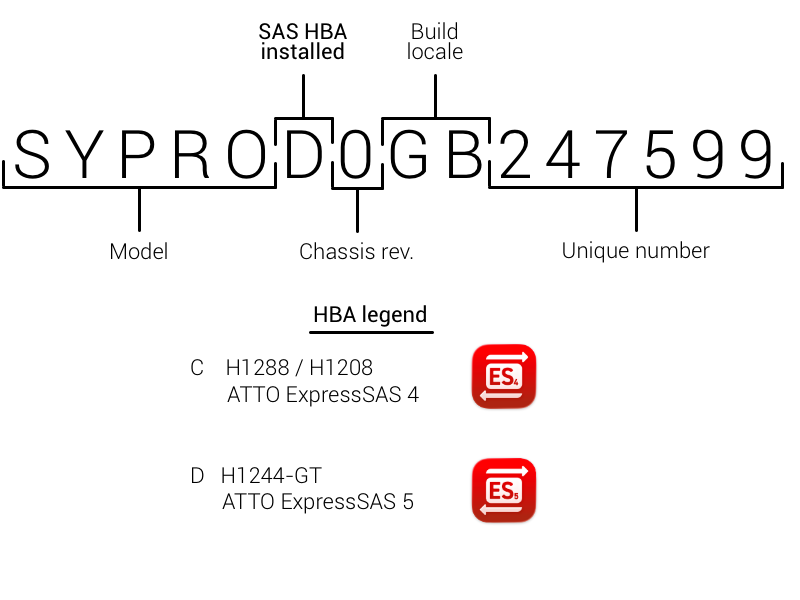
Identify the ATTO driver required by your SymplyPRO Thunderbolt product. You can identify the correct driver to activate and enable by checking your SymplyPRO Thunderbolt chassis serial number (found on the bottom of the chassis). Check the legend below to confirm which driver is required.
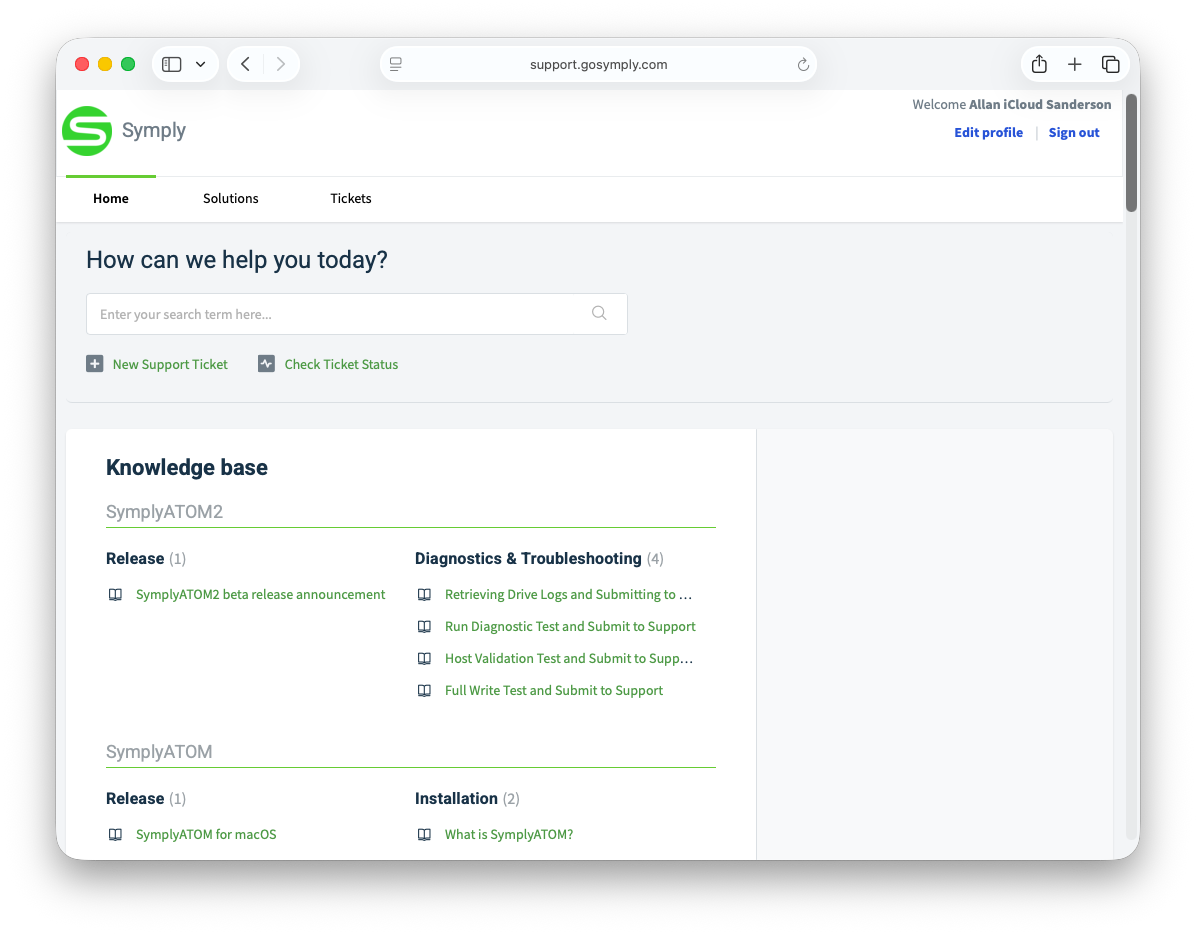
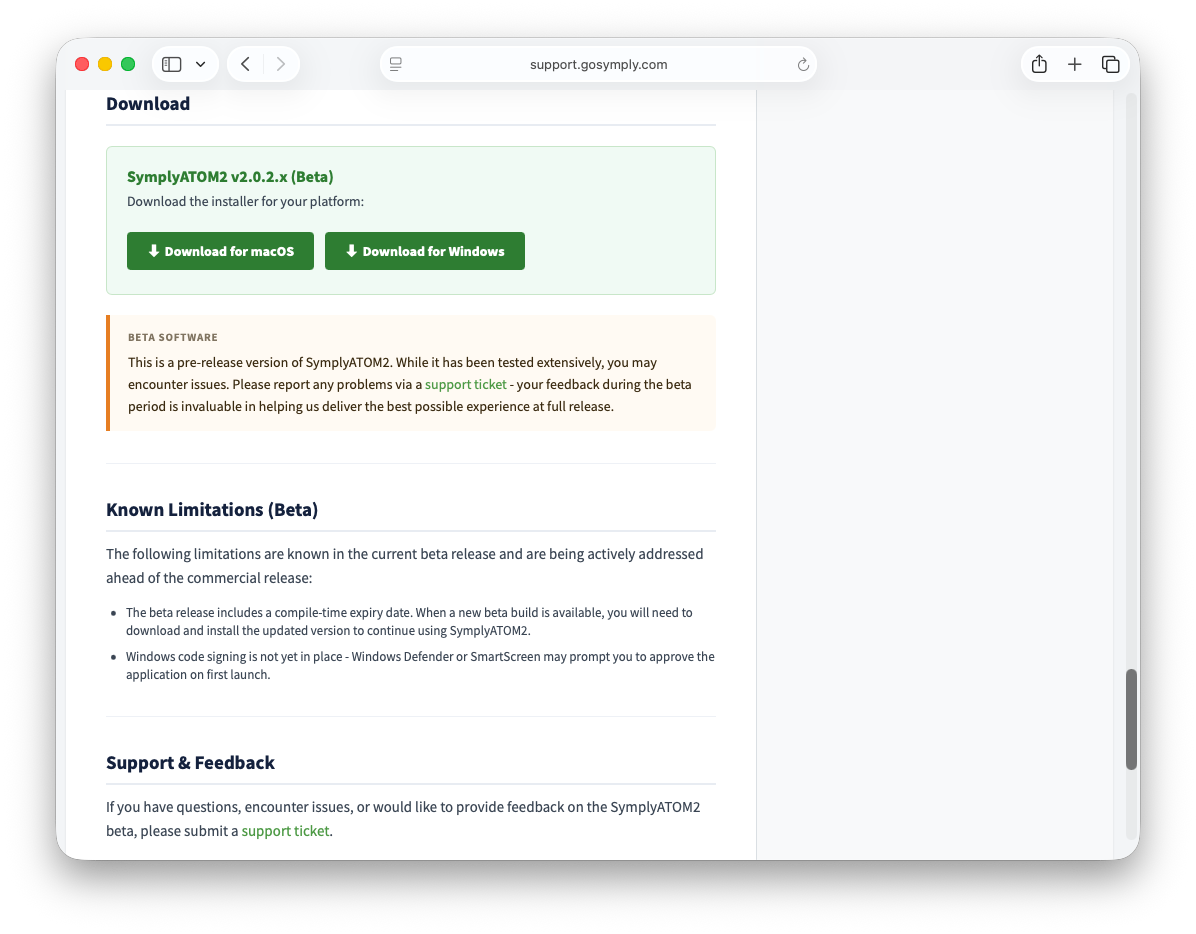
Step 1 - Download SymplyATOM2
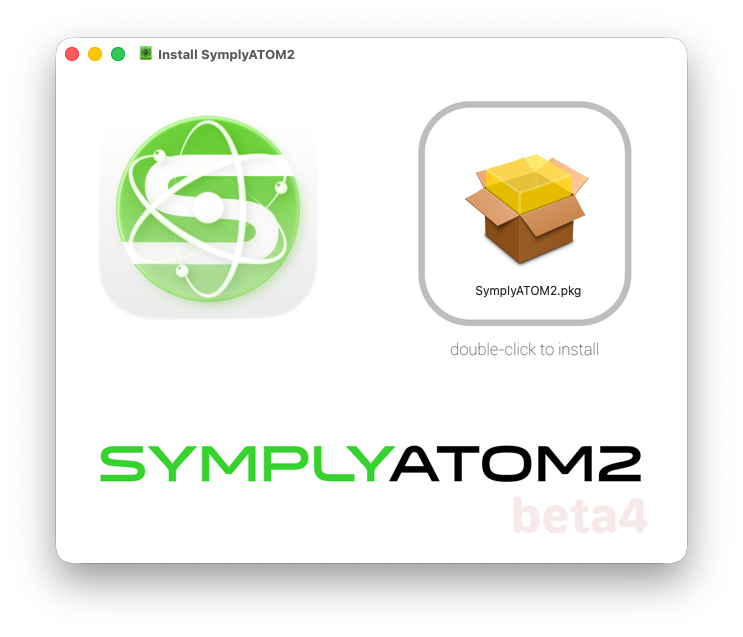
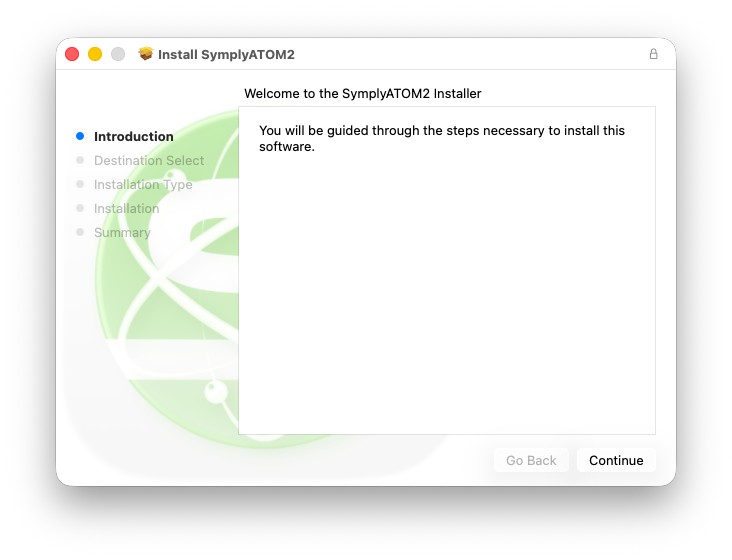
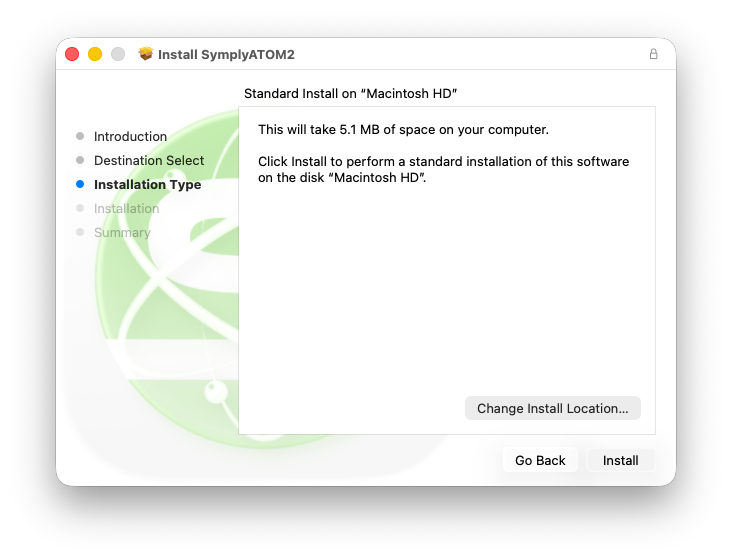
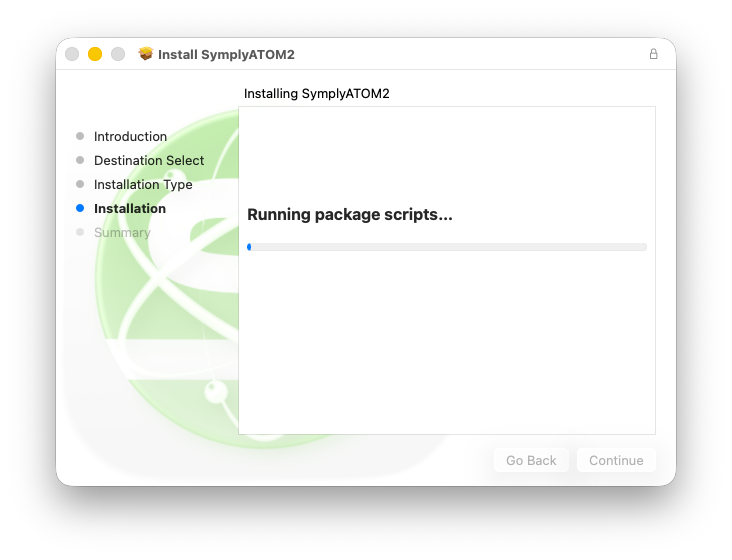
Step 2 - Run the installer
Step 3 - Approve the ATTO ExpressSAS driver
Expand only the section below that matches the Mac you are installing on. If you are not sure which macOS version you are running, click the Apple menu in the top-left of your screen and choose About This Mac to check before continuing.
macOS Tahoe and above (system extension - DEXT)
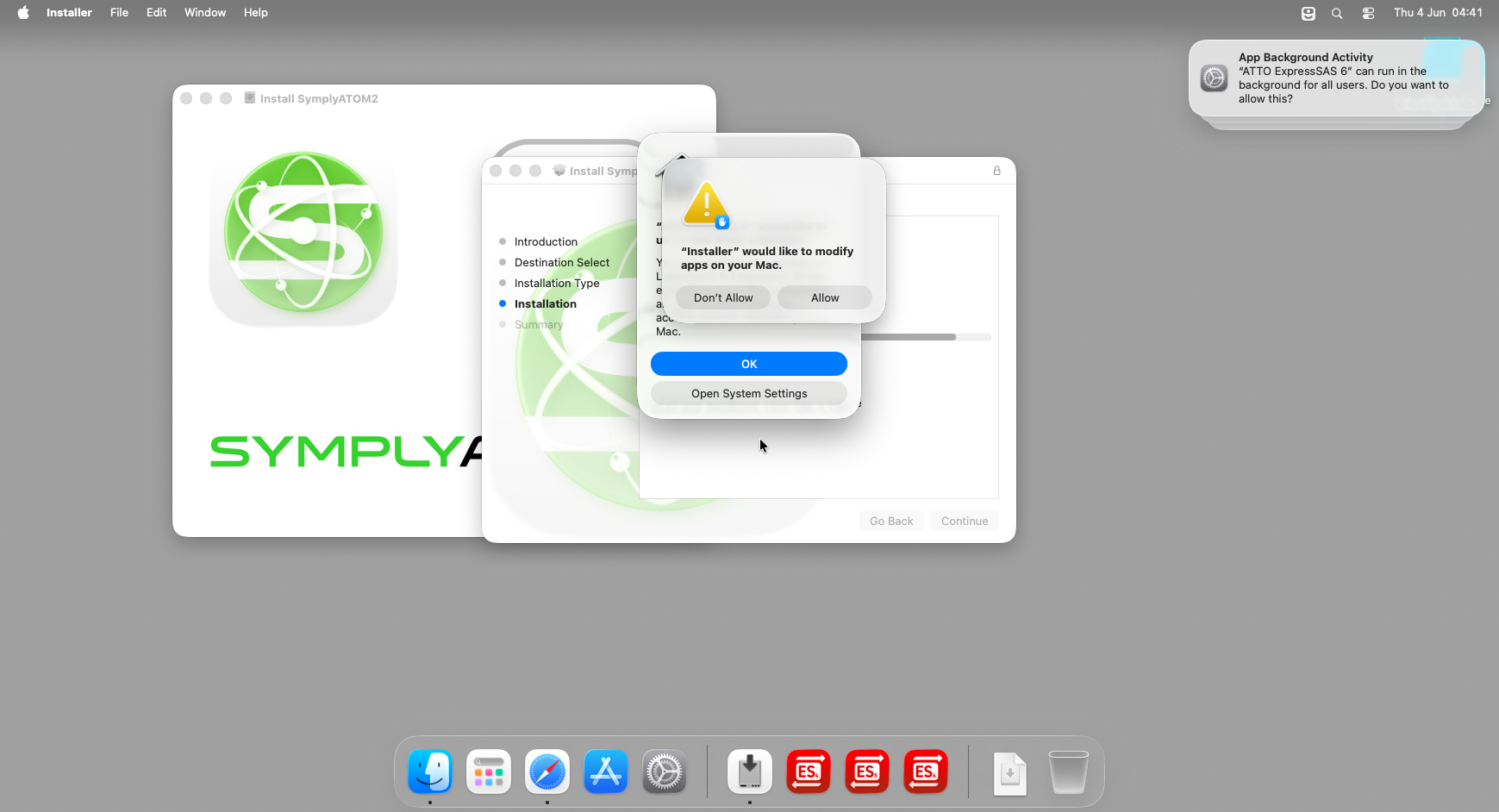
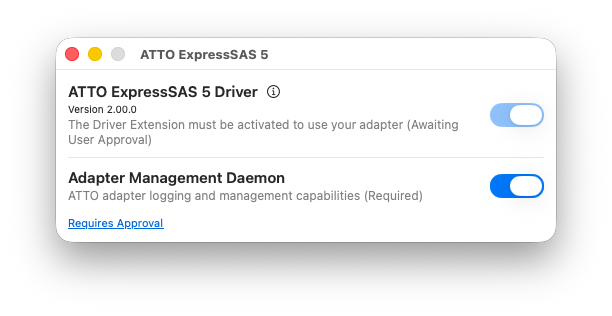
Once installation completes, a System Extension Blocked notification will appear in the top-right corner of your screen. This is expected - macOS has detected the ATTO ExpressSAS system extension (DEXT) and blocked it pending your approval.
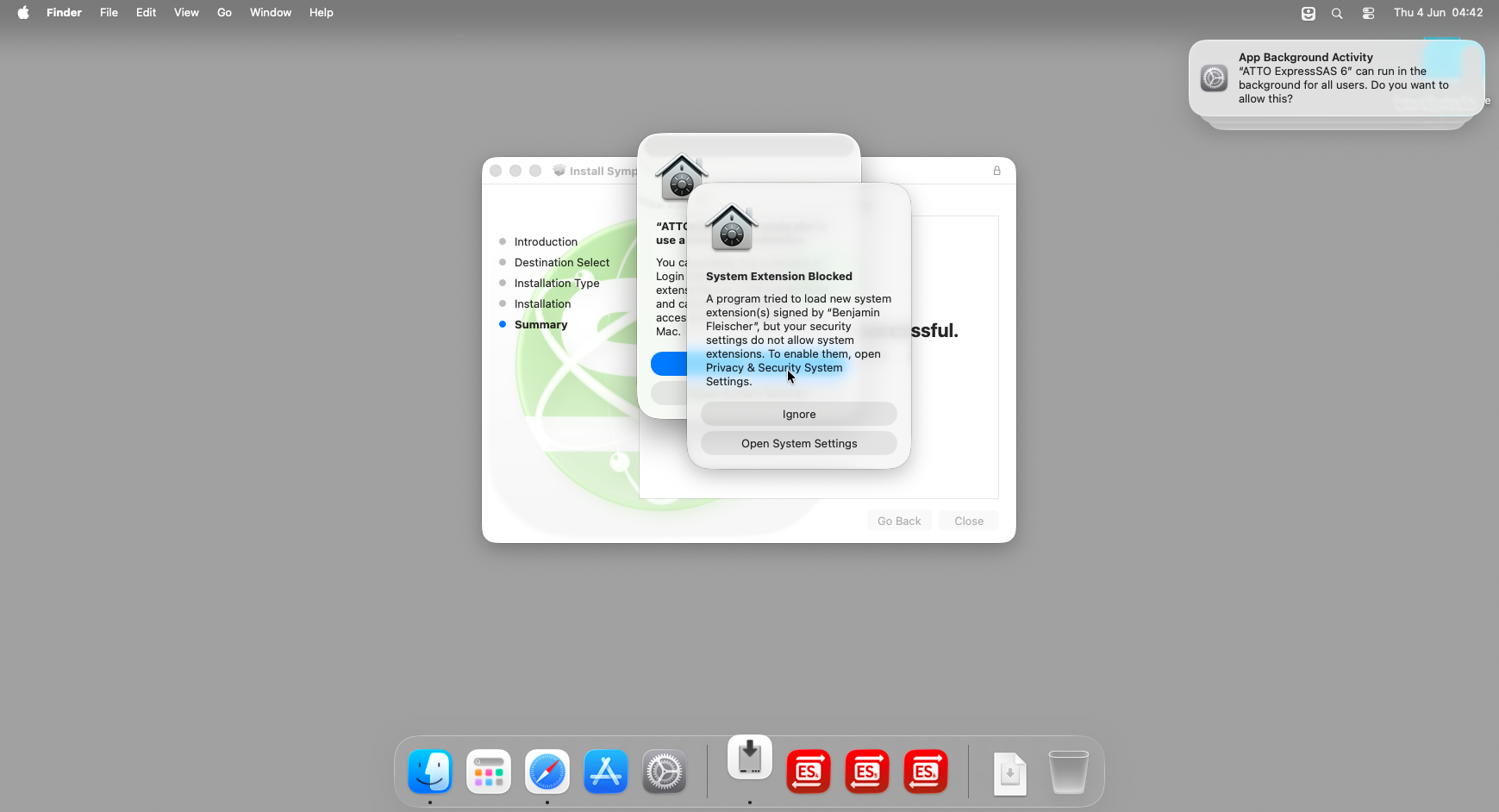
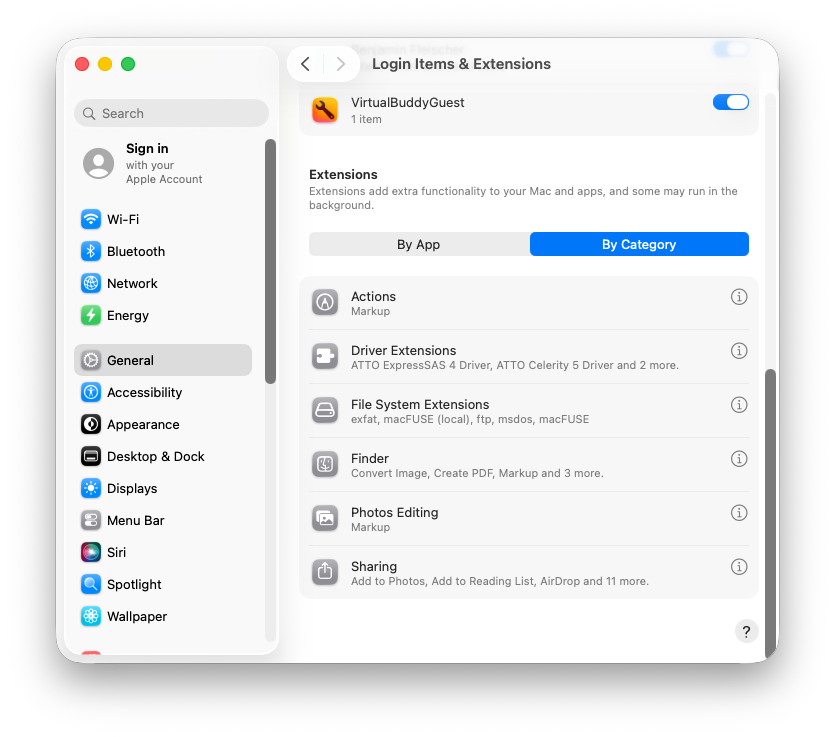
The ATTO ExpressSAS driver requires approval in two places: first in the ATTO ExpressSAS 5 application, then confirmed in System Settings. Complete them in order.
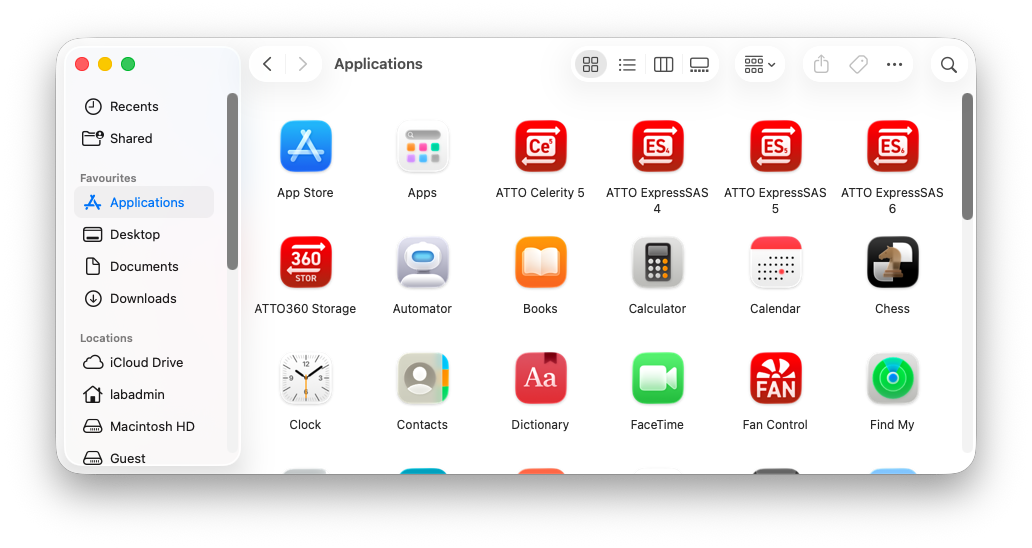
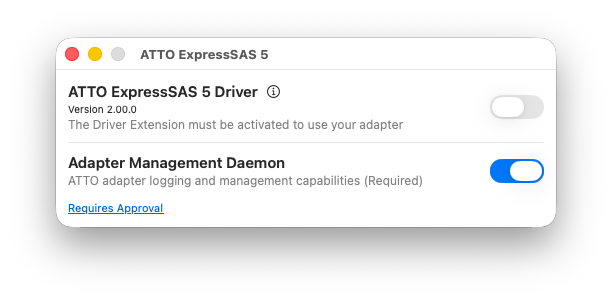
macOS Sequoia and earlier (kernel extension - KEXT)
Screenshots for this section have not been captured yet. The steps below mirror the equivalent macFUSE approval process (see step 4) as a placeholder and will be updated with ATTO-specific screenshots once available.
Apple does not support the DriverKit-based ATTO ExpressSAS system extension on macOS Sequoia or earlier. On these macOS versions the installer instead installs a legacy kernel extension (KEXT) for the ATTO driver, approved through Privacy & Security rather than through the ATTO ExpressSAS 5 app and Login Items & Extensions.
Once installation completes, a System Extension Blocked or System Extension Updated notification will appear for the ATTO driver. Click Open System Settings in the notification. System Settings will open at Privacy & Security.
After your Mac restarts, the ATTO extension will appear in System Settings › Privacy & Security under the list of allowed system software, confirming it is active.
Step 4 - Approve the macFUSE file system extension
The SymplyATOM2 installer also includes macFUSE - the file system extension that enables LTFS (Linear Tape File System) support on macOS. macFUSE is signed by developer Benjamin Fleischer and requires a separate approval through Privacy & Security, distinct from the ATTO driver approval completed in Step 3.
Once the ATTO driver approval is complete, a System Extension Blocked or System Extension Updated notification will appear for macFUSE. Click Open System Settings in the notification. System Settings will open at Privacy & Security.
After your Mac restarts, macFUSE will appear in System Settings › General › Login Items & Extensions under File System Extensions, confirming it is active.
Step 5 - Verify and launch
Frequently asked questions
Why does macOS block the ATTO driver?
macOS requires explicit user consent before loading third-party system extensions and kernel extensions. This is a security feature that has been strengthened across successive macOS releases. The ATTO ExpressSAS driver is a legitimate, signed extension - it is blocked only because it has not previously been approved on this Mac, not because it is unsafe.
Why did my installer put in a KEXT instead of a DEXT?
Apple only supports the modern DriverKit-based ATTO ExpressSAS driver (DEXT) on macOS Tahoe (26) and later. On macOS Sequoia (15) and earlier, DEXTs are not supported, so the SymplyATOM2 installer falls back to a legacy kernel extension (KEXT) for the ATTO driver instead. Which one your Mac received depends entirely on the macOS version you were running at install time - see Step 3.
My Mac has Apple Silicon and the toggle won’t stay enabled - what do I do?
This applies to macOS Sequoia and earlier (the KEXT installation path), and to macFUSE on any macOS version. Apple Silicon Macs (M1–M5) enforce Full Security by default, which blocks third-party kernel extensions from loading regardless of the Privacy & Security approval step. You must first boot into Recovery Mode and use the Startup Security Utility to lower the security policy. Full instructions are here: Enable KEXT Driver Support - macOS. This step is not needed for the ATTO driver itself on macOS Tahoe and above, since the DEXT used there is not a kernel extension.
Do I need to keep the ATTO ExpressSAS 5 app open?
No. This question only applies if you followed the macOS Tahoe and above section in Step 3 - the ATTO ExpressSAS 5 app is only needed there during the initial driver approval. Once approved, the driver runs as a background system service - the ATTO app does not need to remain open for SymplyATOM2 to communicate with your tape drive. If you followed the macOS Sequoia and earlier section instead, there is no ATTO app toggle to check at all - approval is confirmed entirely through Privacy & Security.
My tape drive does not appear in SymplyATOM2 after installation
Check the following in order:
- macOS Tahoe and above: open the ATTO ExpressSAS 5 app and confirm both toggles are blue with no Requires Approval link. If approval is still pending, repeat the relevant steps in Step 3.
- macOS Sequoia and earlier: open System Settings › Privacy & Security and confirm the ATTO driver is listed as allowed, not blocked. If it is still blocked, repeat the relevant steps in Step 3.
- On Apple Silicon, confirm that KEXT support has been enabled in Recovery Mode if you are on the KEXT path. See Enable KEXT Driver Support - macOS.
- Verify that the ATTO ExpressSAS HBA is correctly seated and the tape drive is powered on before launching SymplyATOM2.
- Try restarting your Mac - some driver approvals require a restart to take full effect.
If the drive still does not appear after checking all of the above, submit a support ticket.
Will the DEXT or KEXT approval survive a macOS update?
Generally yes. macOS retains extension approvals across standard system updates. However, a major macOS version upgrade (e.g. Sonoma to Sequoia) or a reinstall of the ATTO driver may require you to repeat the approval step. If you upgrade from macOS Sequoia (or earlier) to macOS Tahoe (or later), your Mac switches from the KEXT installation path to the DEXT installation path entirely, so you will need to follow the macOS Tahoe and above section in Step 3 again, even though you already approved the KEXT before upgrading. The Reduced Security setting on Apple Silicon is set once in Recovery Mode and does not need to be repeated after a standard macOS update.
If you have any questions please submit a [support ticket]