
SymplyATOM2 can detect, download, verify, and install new drive firmware for you automatically from a banner at the top of the app — no separate downloads, command-line tools, or vendor utilities required.
TABLE OF CONTENTS
Overview
Every LTO drive runs its own firmware — low-level microcode from IBM that controls how the drive talks to tapes, to the host computer, and to diagnostic tools. SymplyATOM2 automatically checks the firmware installed on every connected drive against Symply's published firmware manifest, and if a newer version is available, it shows an Update Now banner at the top of the window. You don't need to know your drive's exact firmware version, hunt for the right file, or run any commands yourself.
Keeping drive firmware current matters: IBM periodically issues firmware revisions that fix drive-level bugs, improve compatibility with newer LTO tape media generations, and resolve behaviour that can otherwise look like a hardware or media fault during diagnostics. If Symply Support has asked you to check for a firmware update, or you simply want to keep a drive current, the automated banner in Steps 1–4 below is the recommended way to do it.
Step 1 — Notice the automatic update banner
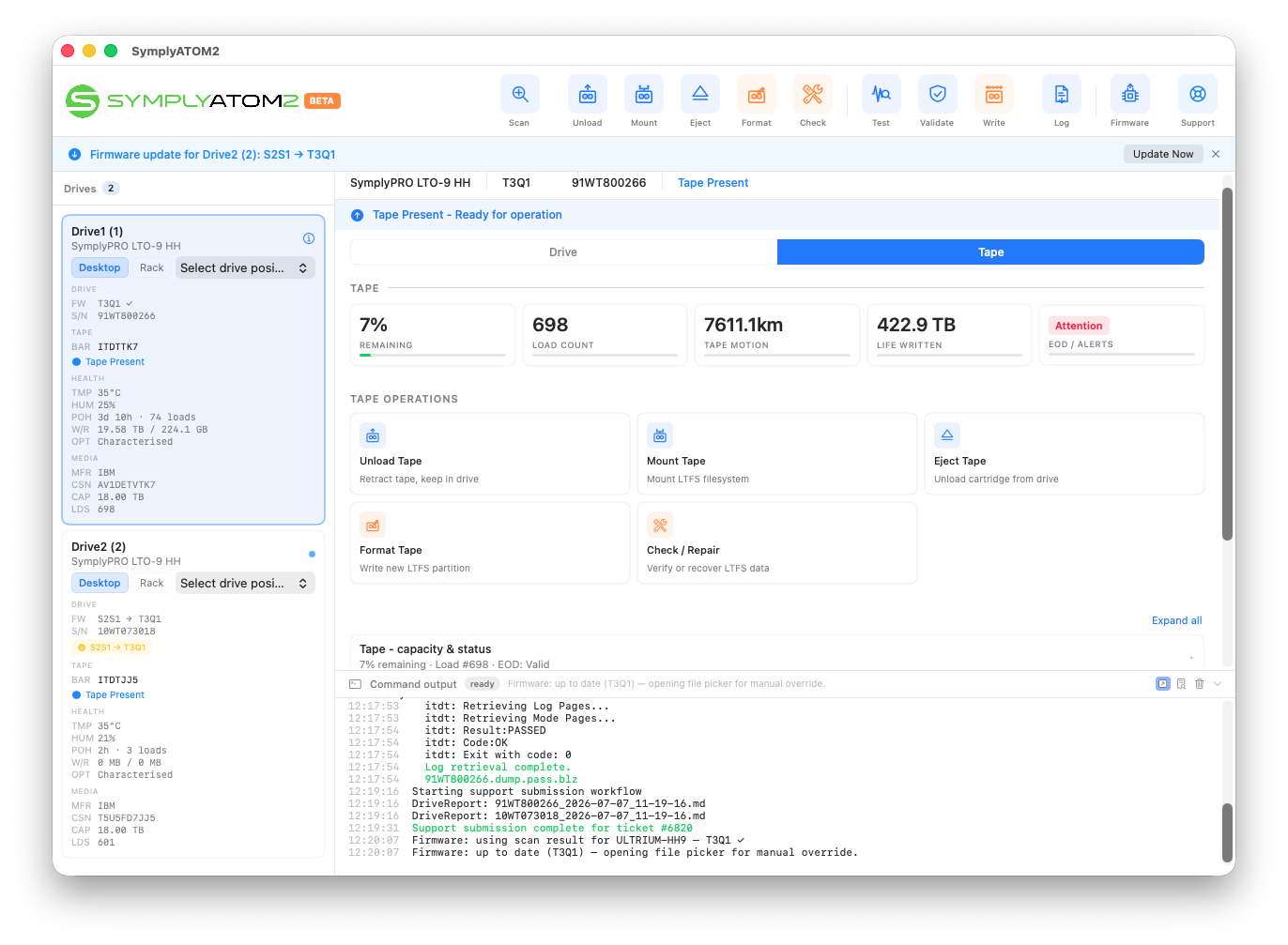
SymplyATOM2 only updates one drive at a time. If more than one drive shows a pending update, complete one drive's update fully before starting the next.
Step 2 — Review the update details
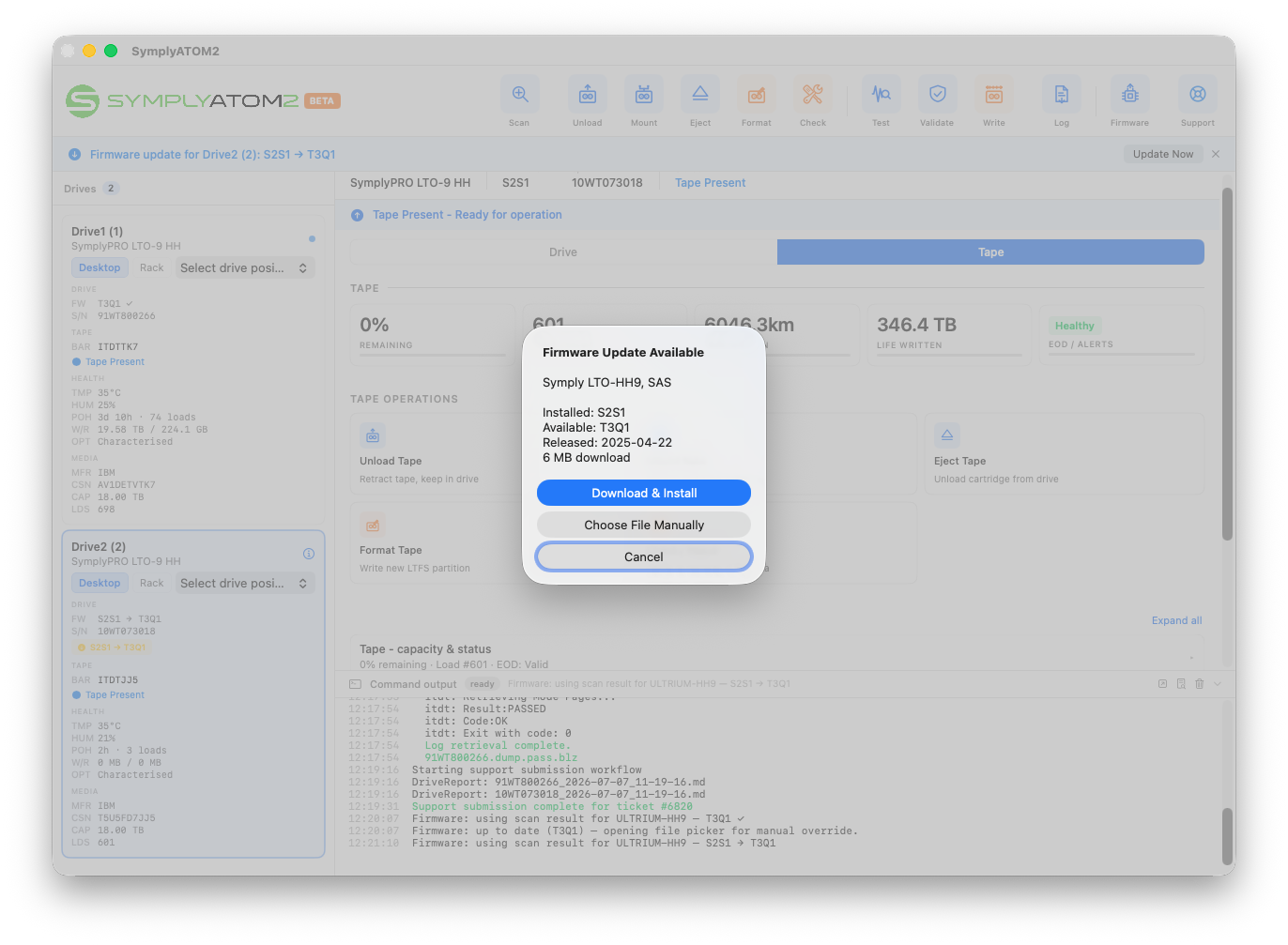
Step 3 — Download, verify, and install
When you click Download & Install, SymplyATOM2 carries out the following automatically, with no further input needed from you:
- It fetches the current firmware manifest — the list of the latest available firmware version for every supported drive — together with a separate digital signature file, both from Symply's secure hosting.
- It verifies that signature using public-key cryptography before trusting anything the manifest says. If the signature doesn't check out, the manifest is rejected outright and SymplyATOM2 falls back to the last manifest it has already verified, rather than acting on an unverified one.
- It downloads the firmware file itself — a small
.fmrzfile, typically only a few megabytes — matched to your drive's exact model, then verifies its checksum against the value published in the manifest before it goes anywhere near your drive. - Only once both checks pass does it install the firmware onto the drive.
Downloaded firmware files are cached locally so a repeat update doesn't need to re-download them: macOS: ~/Library/Caches/SymplyATOM2/FirmwareCache/ · Windows: %LOCALAPPDATA%\SymplyATOM2\FirmwareCache\. These files are safe to delete at any time — SymplyATOM2 will simply re-download and re-verify the file the next time it's needed.
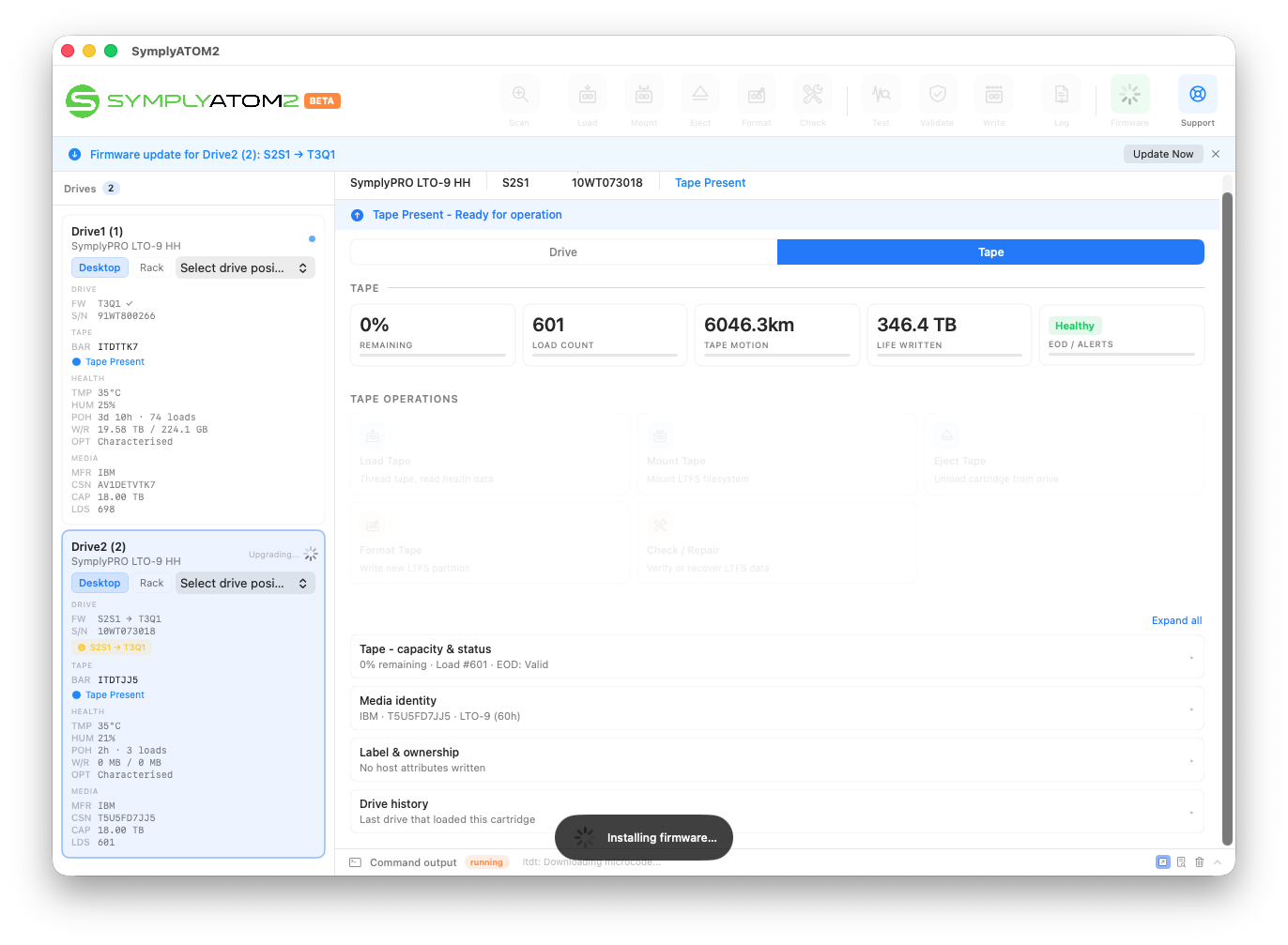
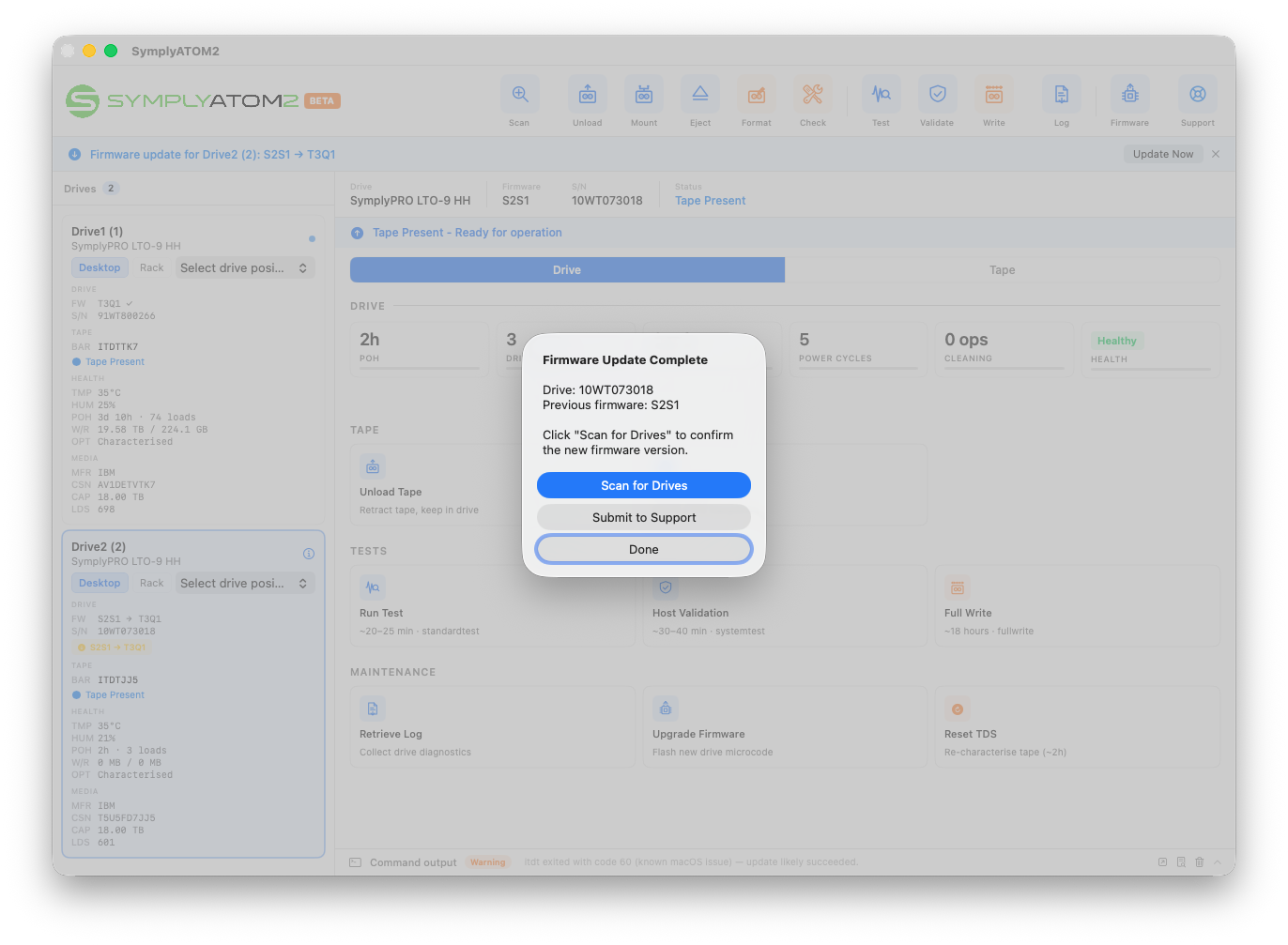
Step 4 — Confirm the new firmware version
Manual firmware upgrade
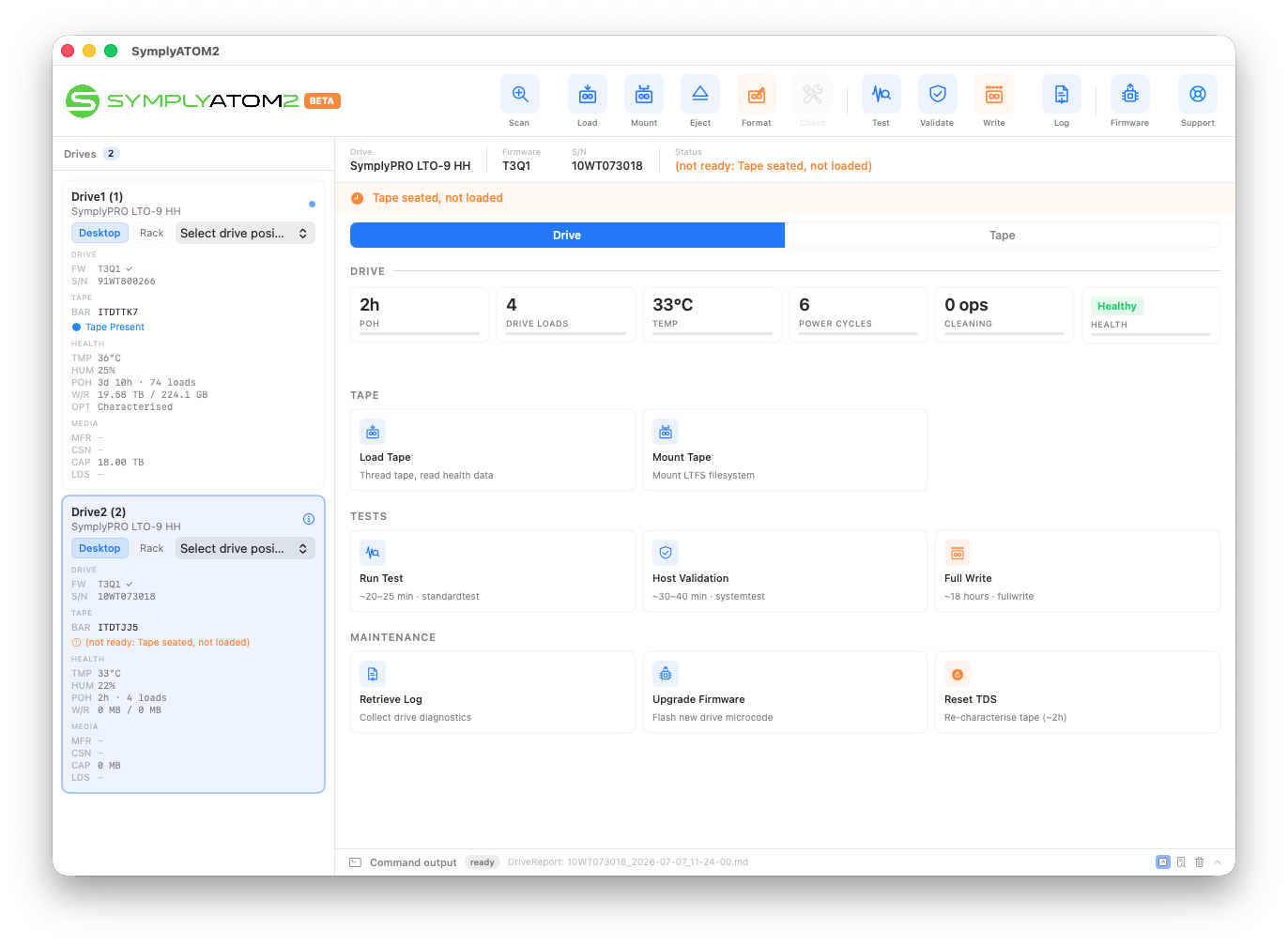
SymplyATOM2 also provides a manual firmware upgrade path for cases where the automated download can't be used — for example, on a machine with no internet access, or when Symply Support has provided a specific firmware file directly. From a drive's Maintenance section, click the Upgrade Firmware tile, then click Choose File Manually in the dialog that appears (the same dialog shown in Step 2) to open a file picker and select a .fmrz firmware file from disk.
Frequently asked questions
Why does drive firmware need to be kept up to date?
IBM periodically issues firmware revisions for LTO drives that fix drive-level bugs, improve compatibility with newer LTO tape media generations, and resolve behaviour that can otherwise be mistaken for a hardware or media fault during diagnostics. Symply Support may ask you to update firmware as a first step when investigating a drive issue for exactly this reason.
Why does SymplyATOM2 check a signature on the firmware manifest?
The firmware manifest — the list of the latest available firmware version for every supported drive — is published together with a separate digital signature. SymplyATOM2 verifies that signature using public-key cryptography before trusting anything the manifest says, and separately verifies the checksum of the firmware file itself before it's used to flash a drive. Both checks exist so that a tampered or corrupted manifest or firmware file is rejected rather than acted on.
Do I need an internet connection to update firmware?
Yes, to install a new firmware version. SymplyATOM2 keeps a short-lived local copy of the last verified manifest so it can still report a drive's status shortly after going offline, but downloading and installing an actual firmware update always requires an active internet connection.
Where are downloaded firmware files stored, and can I delete them?
On macOS: ~/Library/Caches/SymplyATOM2/FirmwareCache/
On Windows: %LOCALAPPDATA%\SymplyATOM2\FirmwareCache\
These files are safe to delete at any time — SymplyATOM2 will simply re-download and re-verify the file the next time it's needed.
What's the difference between Download & Install and Choose File Manually?
Download & Install fetches the correct firmware for your exact drive automatically from Symply's signed manifest and verifies it before installing — this is the option to use in almost every case. Choose File Manually opens a file picker so you can select a .fmrz file yourself, bypassing that automatic matching and verification. Only use it if Symply Support has told you to — see Manual firmware upgrade above.
Is it safe to interrupt a firmware update?
No. Do not disconnect the drive, remove power, or quit SymplyATOM2 while an update is running. Let it run to completion, then use Scan for Drives to confirm the result, as described in Step 4.
How do I know the update actually worked?
Always click Scan for Drives on the Firmware Update Complete dialog rather than assuming success. Once the scan finishes, check the Firmware field in the drive's detail view — it should show the new version, and the update banner will no longer appear. If it still shows the old version, or the banner reappears, submit a support ticket rather than repeating the update yourself.
If you have any questions please submit a [support ticket]