
Use the Host Validation function to test the complete data path between your computer and your LTO drive, then submit the results directly to Symply Support without leaving the app.
TABLE OF CONTENTS
- Overview
- Step 1 — Select your drive and load a tape
- Step 2 — Open Host Validation and review the warning
- Step 3 — Acknowledge data erasure and start the test
- Step 4 — Wait for the test to complete
- Step 5 — Review the performance summary
- Step 6 — Submit to Support
- Option A — Create a new support ticket
- Option B — Add diagnostics to an existing ticket
- Step 7 — Submission confirmed
- Frequently asked questions
Overview
Host Validation tests the complete data path between your computer and the tape drive. It writes data to the loaded cartridge at different block sizes and compression settings, reads it back, and measures throughput — confirming that your computer, host bus adapter (HBA), cabling, and drive can all transfer data reliably and at the expected speed.
Unlike Run Test, which focuses on the drive’s internal hardware diagnostics and self-tests, Host Validation is specifically designed to catch problems in the connection between your system and the drive. It performs multiple write-read-verify cycles with varying parameters to exercise the data path under different conditions, and reports detailed throughput results (data rate, elapsed time, and total data transferred) for each pass.
The test typically takes 30–40 minutes. The drive will be fully occupied during this time. When it finishes, SymplyATOM2 displays a performance summary and saves a results file that you can upload directly to a new or existing Symply Support ticket, or reveal in Finder.
Symply Support may ask you to run Host Validation when troubleshooting transfer speed problems, data errors during LTFS operations, or suspected cabling or HBA issues — situations where the drive itself may be healthy but something in the connection chain is not performing correctly.
Step 1 — Select your drive and load a tape
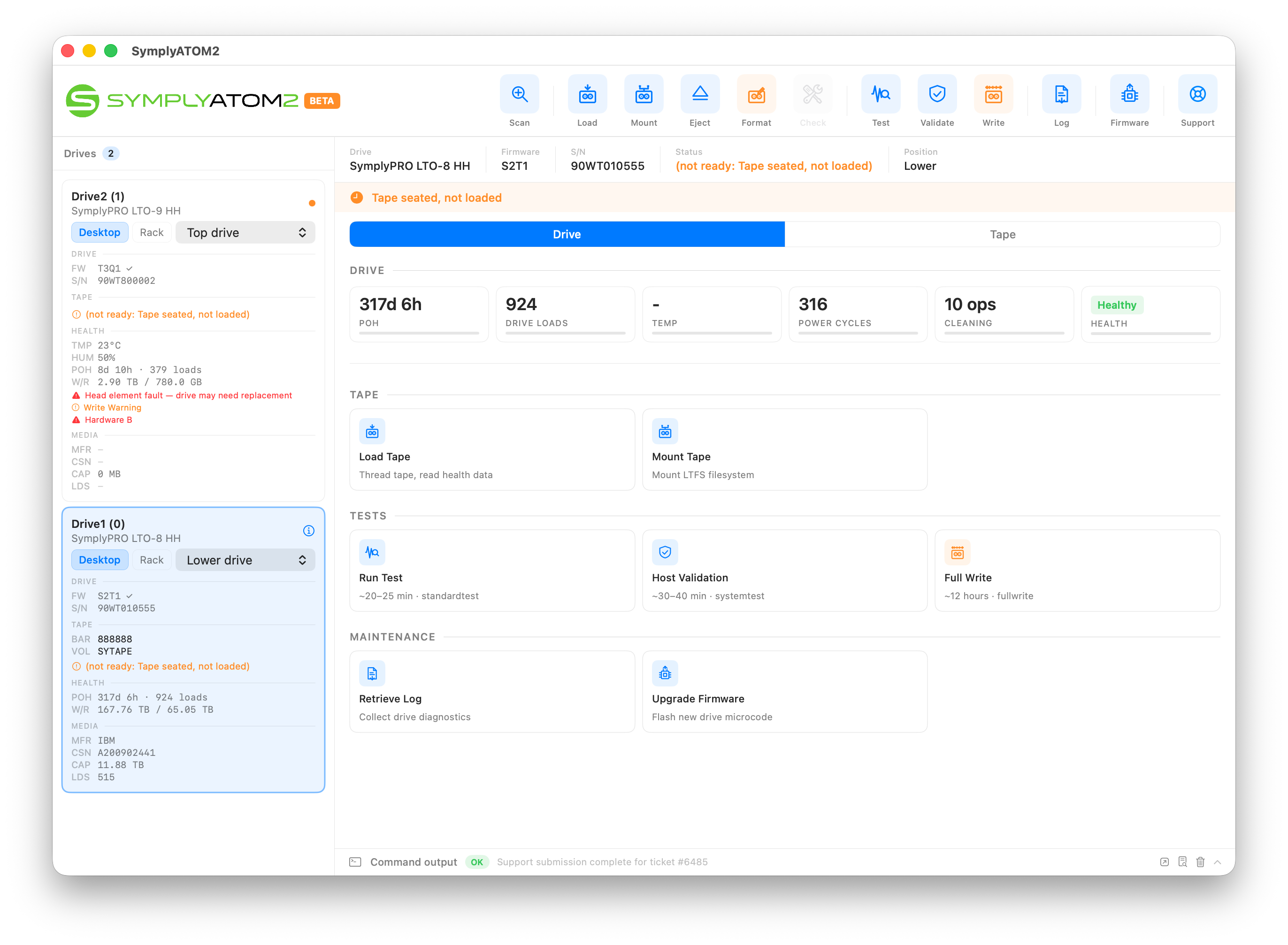
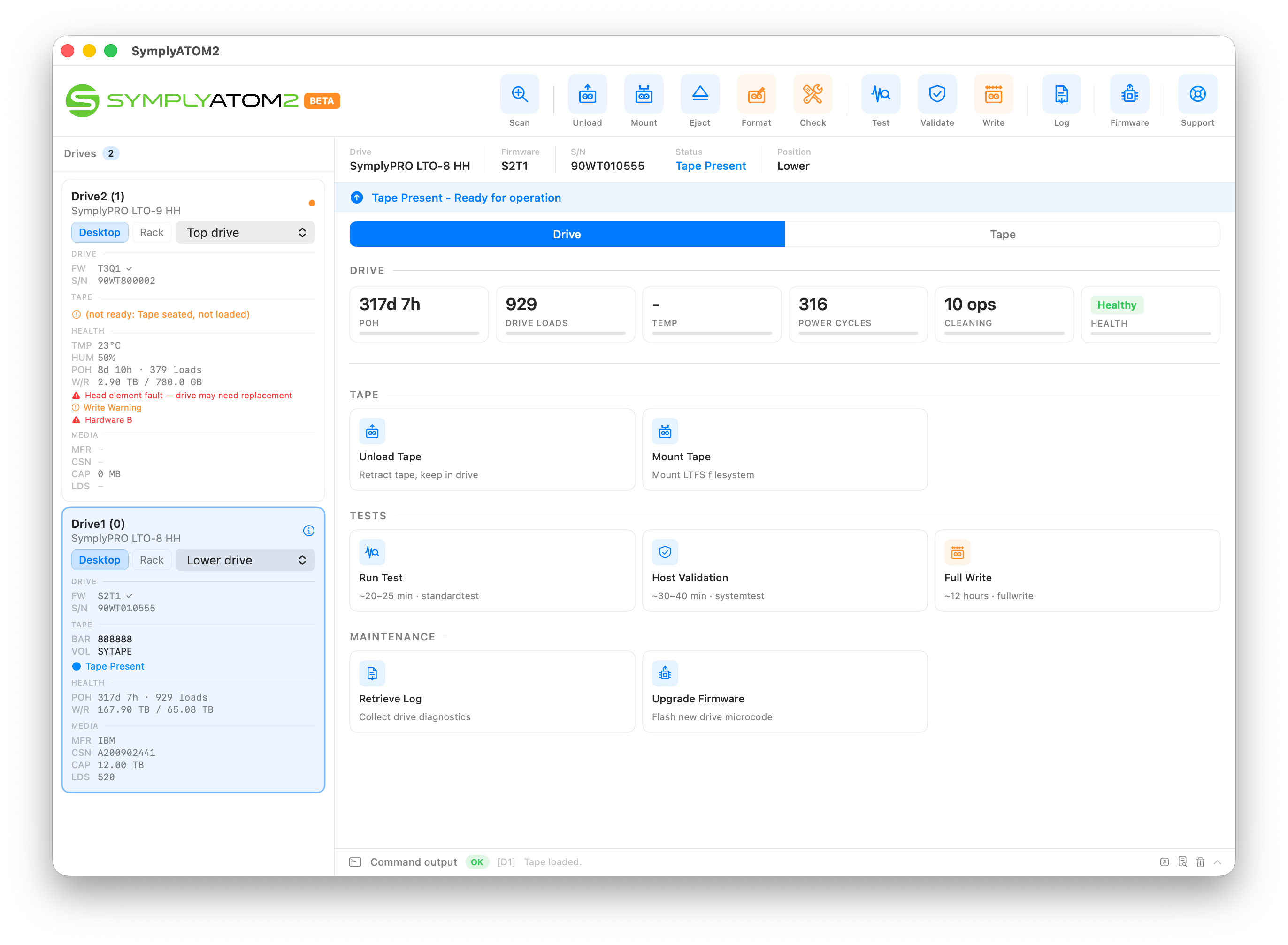
Step 2 — Open Host Validation and review the warning
Scroll down to the Tests section and click Host Validation. Alternatively, click the Validate icon in the toolbar at the top of the window. A confirmation sheet will appear showing the drive details and a clear warning that all data on the tape will be permanently erased.
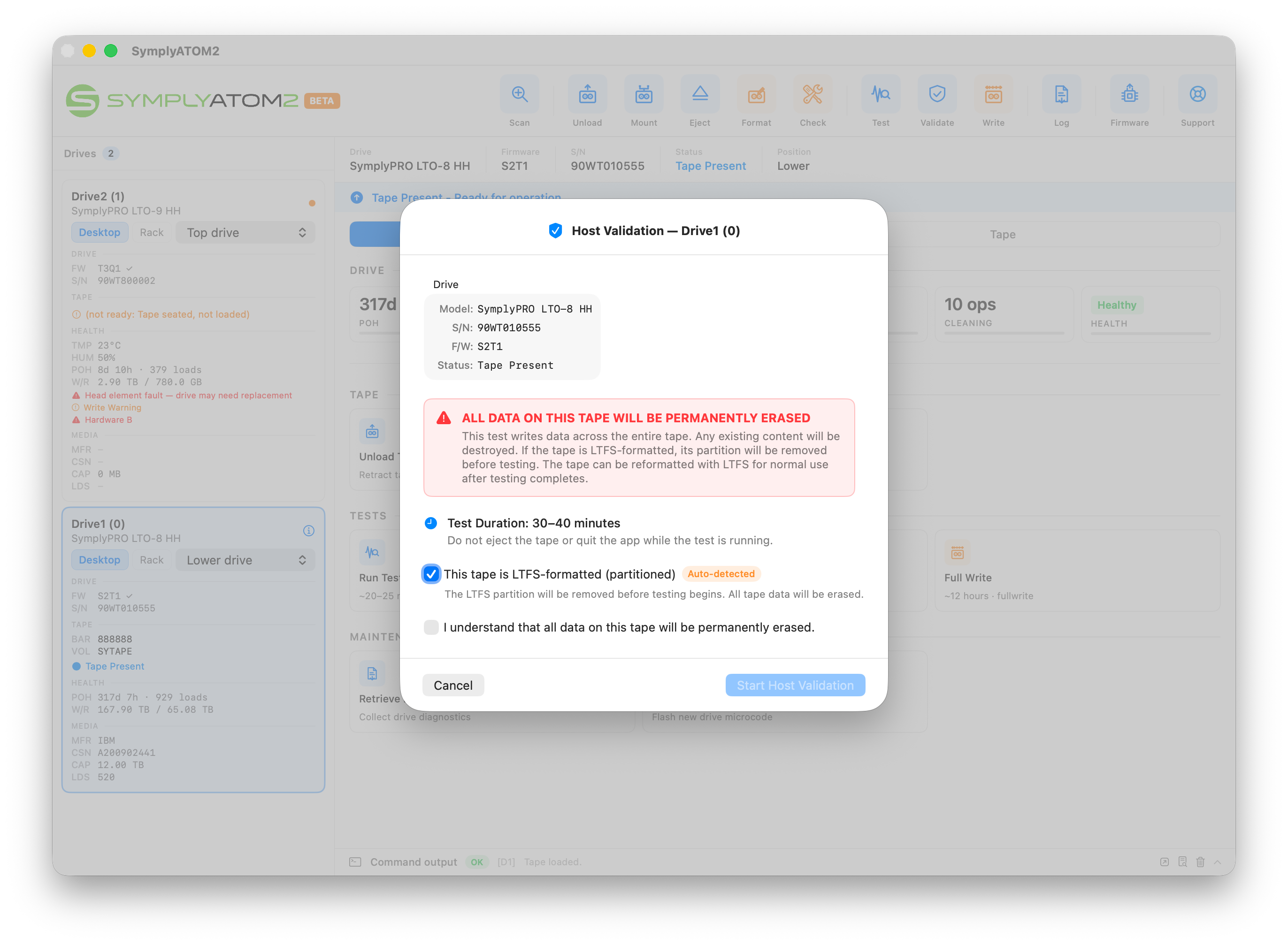
Take note of the following information shown in the sheet:
- Drive — confirms the drive model, serial number, and firmware version the test will run against.
- Status: Tape Present — confirms a tape is loaded and ready.
- Test Duration: 30–40 minutes — do not eject the tape or quit the app while the test is running.
- This tape is LTFS-formatted (partitioned) — if shown with an Auto-detected badge, the tape contains an LTFS partition that will be removed before testing begins. A second confirmation will appear in the next step.
Step 3 — Acknowledge data erasure and start the test
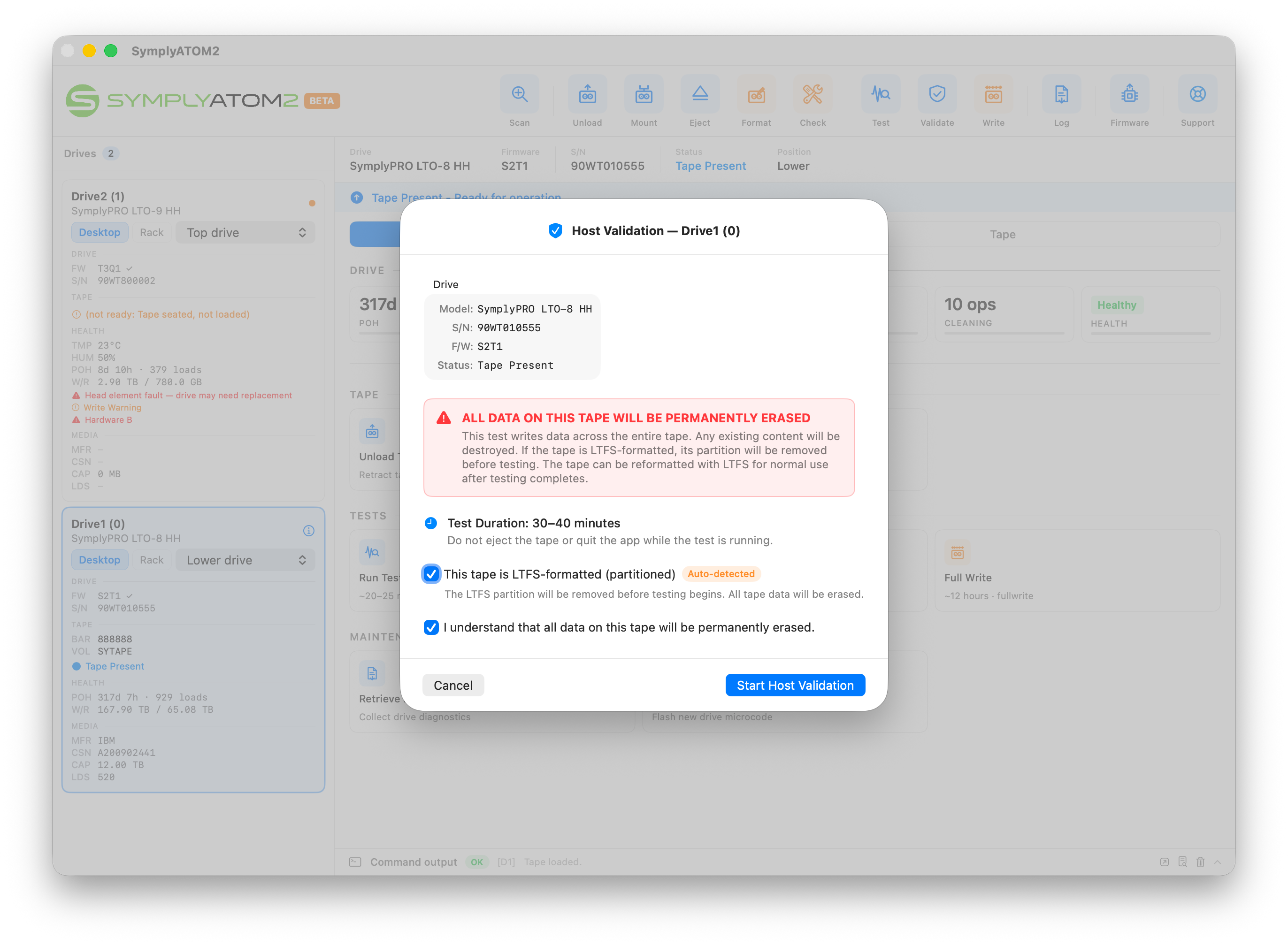
If the tape is LTFS-formatted, a second confirmation dialog will appear before the test begins:
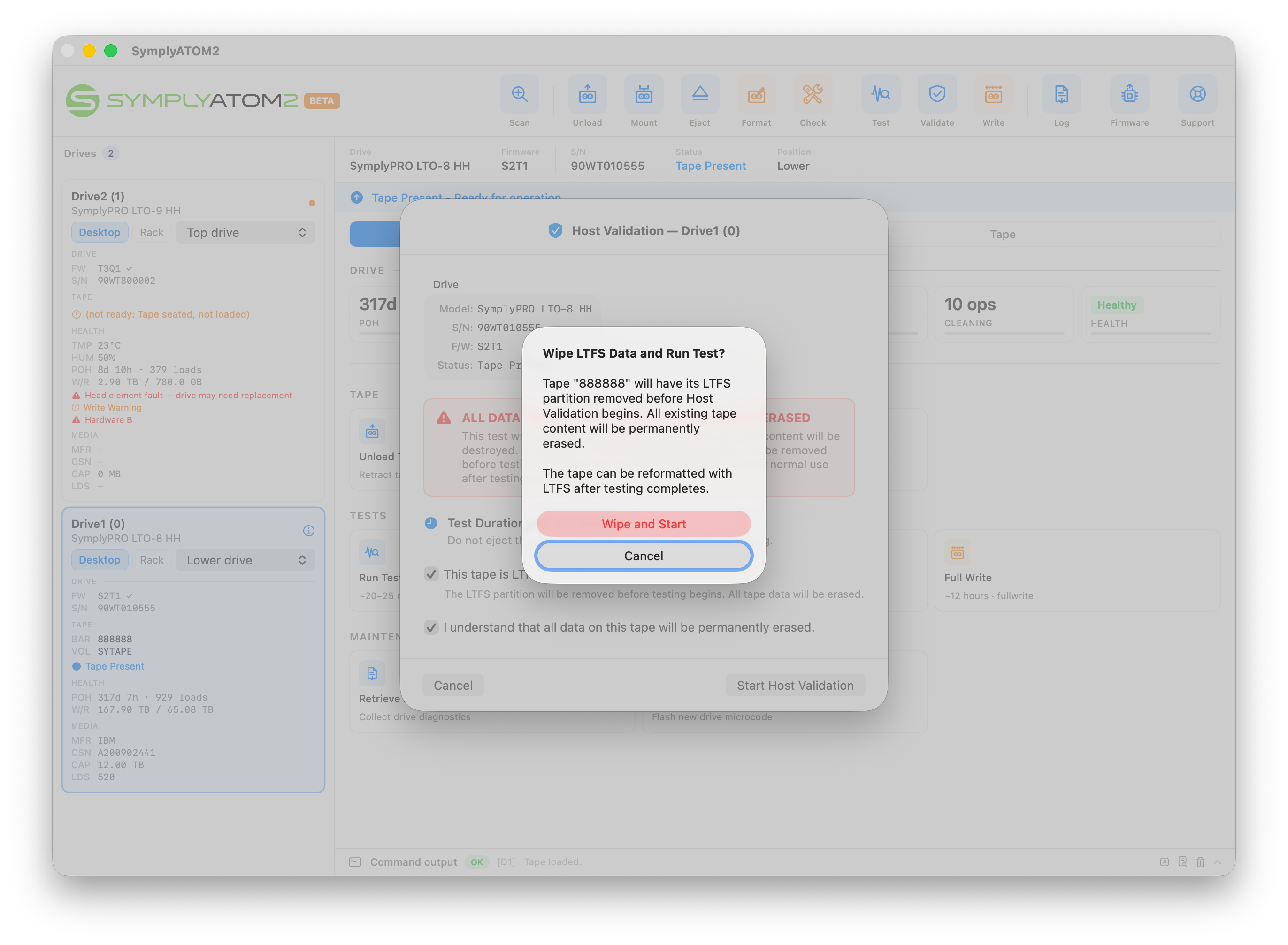
Click Wipe and Start to remove the LTFS partition and begin the test. The tape can be reformatted with LTFS after testing completes.
Step 4 — Wait for the test to complete
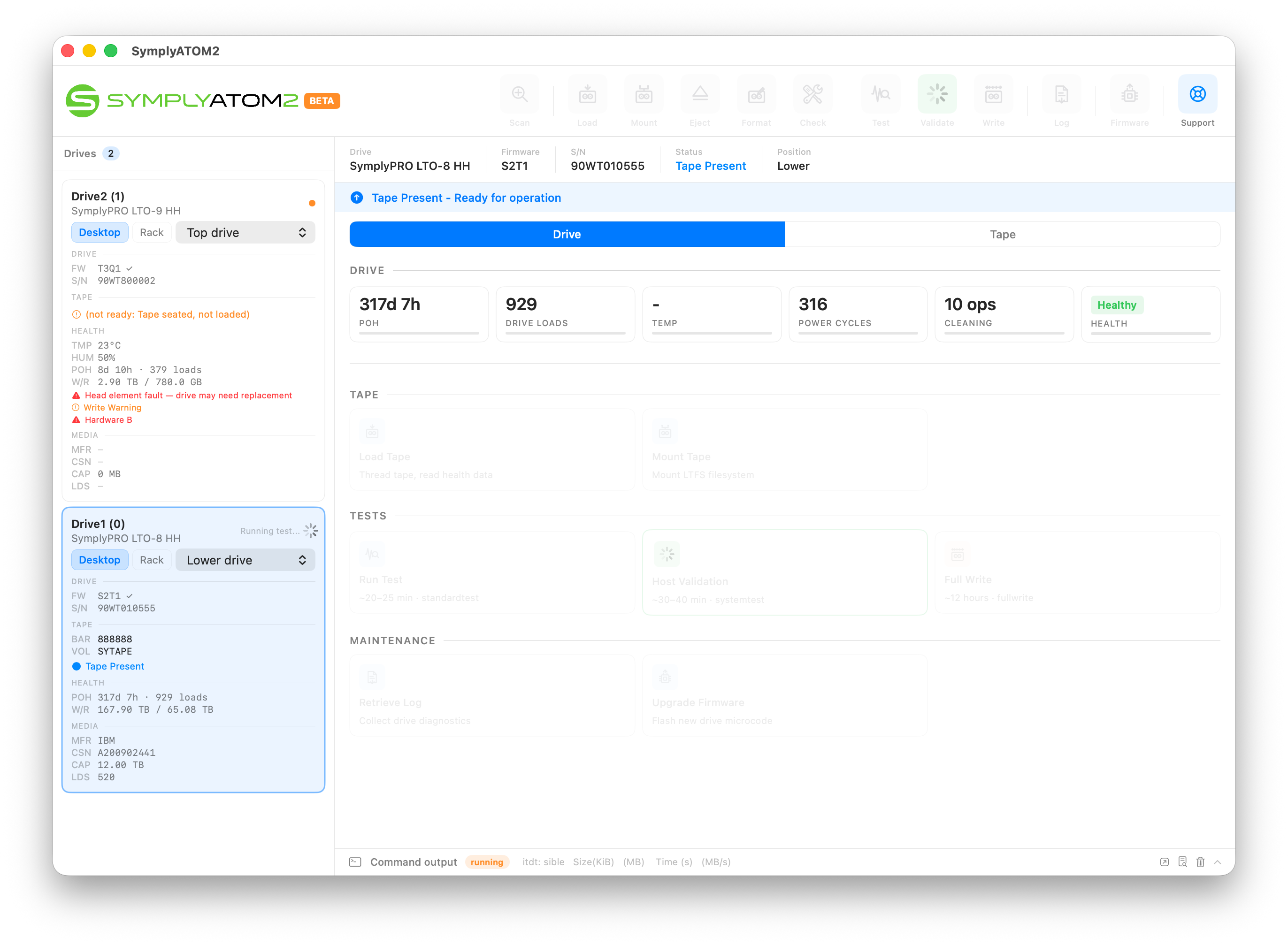
SymplyATOM2 will begin running multiple write-read-verify passes across the tape at varying block sizes and compression settings. During this time the drive entry in the sidebar will show Running test… and all other drive actions will be temporarily disabled. The status bar at the bottom of the window shows live progress, including the current data transfer size and throughput rate.
Step 5 — Review the performance summary
When the test finishes, a result sheet will appear with a detailed performance summary for the drive and data path.
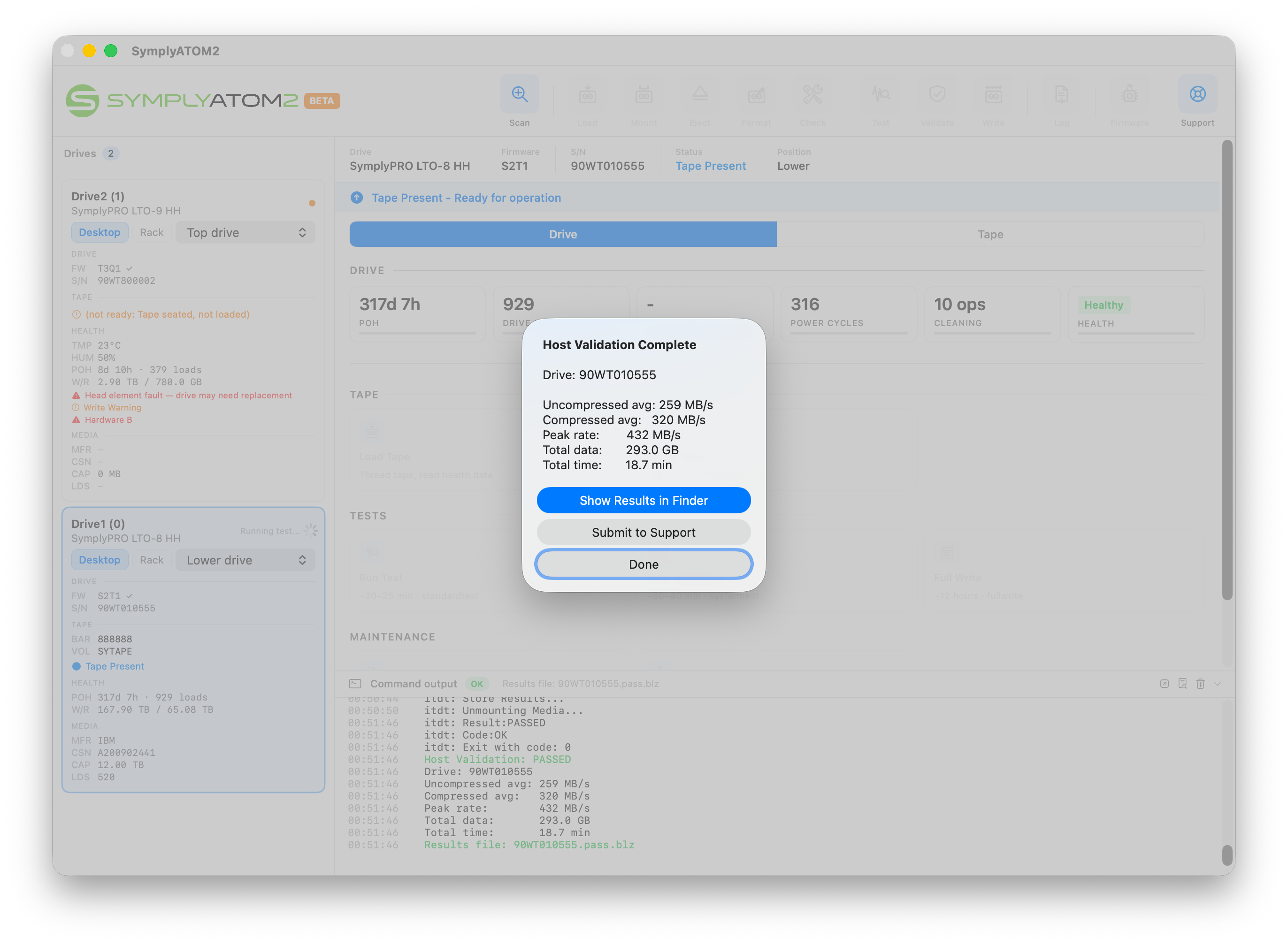
The summary includes the following measurements:
| Metric | What it means |
|---|---|
| Uncompressed avg | Average throughput measured during passes with hardware compression disabled. Reflects the raw sustained transfer rate of your data path. |
| Compressed avg | Average throughput measured during passes with hardware compression enabled. Typically higher than the uncompressed figure. |
| Peak rate | The highest instantaneous transfer rate observed during any pass. |
| Total data | The total amount of data written and verified across all passes. |
| Total time | The elapsed time for the complete test. |
From the result sheet you have three options:
- Show Results in Finder — Opens the folder containing the results file on your Mac (Windows: opens in File Explorer). Useful if you want to attach the file manually to an email or ticket.
- Submit to Support — Opens the Submit Support Request window to upload the results and create or update a Symply support ticket. This is the recommended option.
- Done — Closes the sheet without submitting. You can submit later using the Support toolbar button.
Step 6 — Submit to Support
Clicking Submit to Support opens the Submit Support Request window. This builds a compressed diagnostic bundle, uploads it securely to SymplyNEBULA, and either creates a new support ticket or adds a note to an existing one.
What's included in the bundle
| Item | Included | Notes |
|---|---|---|
| Full System Information report (.spx) | Always | macOS system profile — hardware, OS, connected devices |
| Network state snapshots | Always | Sysdiagnose-style triage data |
| Support context & manifest files | Always | App version, drive details, current drive state |
| Current SymplyATOM2 session log | Selected by default | Application log from the current session |
| Latest Host Validation output | Selected by default | The performance results file from the test completed in Steps 1–5. Shows how recently it was captured. |
| Retrieve Log, Run Test, Full Write | Optional | Only available if those operations have been run. Greyed out otherwise — run the relevant operation first to include. |
| Firmware Upgrade output | Optional | Only included if a firmware upgrade was performed within the last 24 hours. |
| Crash reports | Optional | Include if SymplyATOM2 has crashed or behaved unexpectedly. |
An estimated bundle size is shown before you submit, so you know what will be uploaded.
Option A — Create a new support ticket
Select Create new ticket if you have not already contacted Symply Support about this issue.
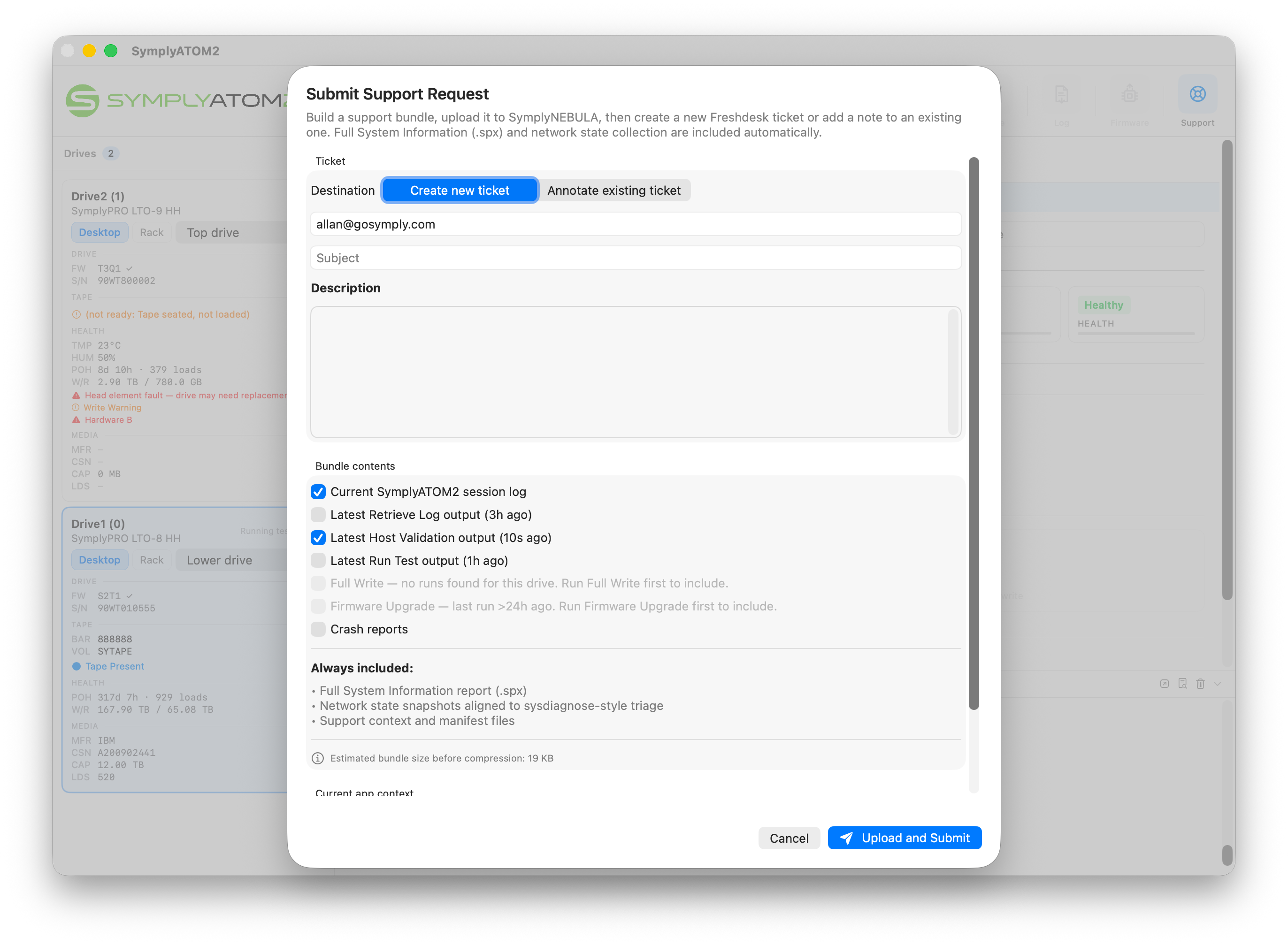
- Confirm or enter the email address associated with your Symply account.
- Enter a short Subject summarising the issue (e.g. LTO-8 — Host Validation results, slow transfer speeds).
- In the Description field, describe the symptoms you observed before running the test — for example, slow archive speeds, data errors in LTFS, or a specific error message.
- Review the Bundle contents checklist and tick any additional items you want to include.
- Click Upload and Submit.
Option B — Add diagnostics to an existing ticket
Select Annotate existing ticket if Symply Support has already opened a case and asked you to run Host Validation and submit the results.
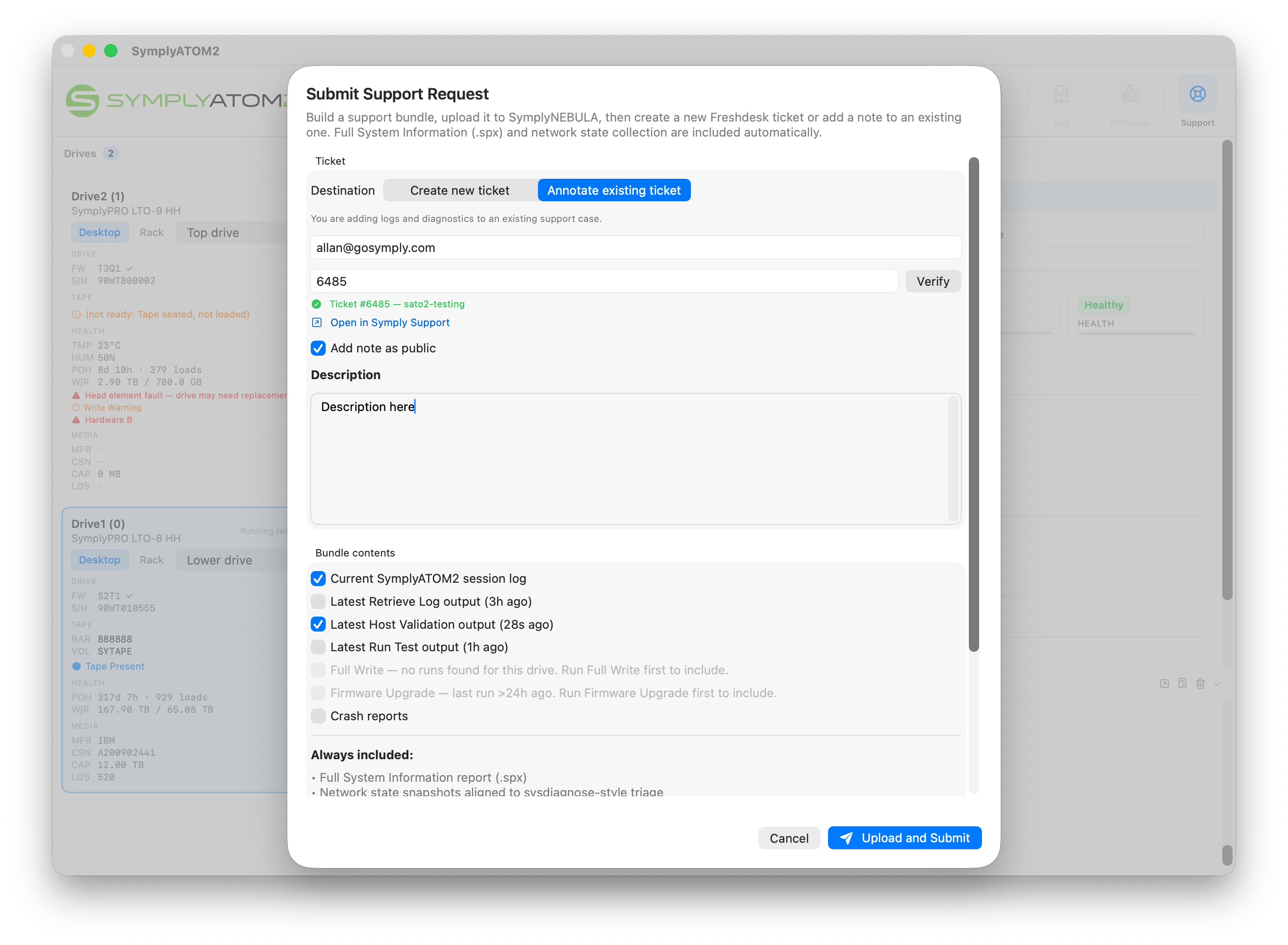
- Enter the email address used when the original ticket was raised.
- Enter the Ticket ID number from your existing support case (found in the subject line of any Symply Support email, e.g. #6485).
- Click Verify. SymplyATOM2 will confirm the ticket exists and belongs to your email address.
- Once verified, add a Description noting that you are submitting the Host Validation results as requested.
- Review the Bundle contents and click Upload and Submit.
Step 7 — Submission confirmed
After clicking Upload and Submit, SymplyATOM2 compresses the bundle, uploads it securely to SymplyNEBULA, and attaches it to your ticket. When complete, a green confirmation message shows the ticket number.
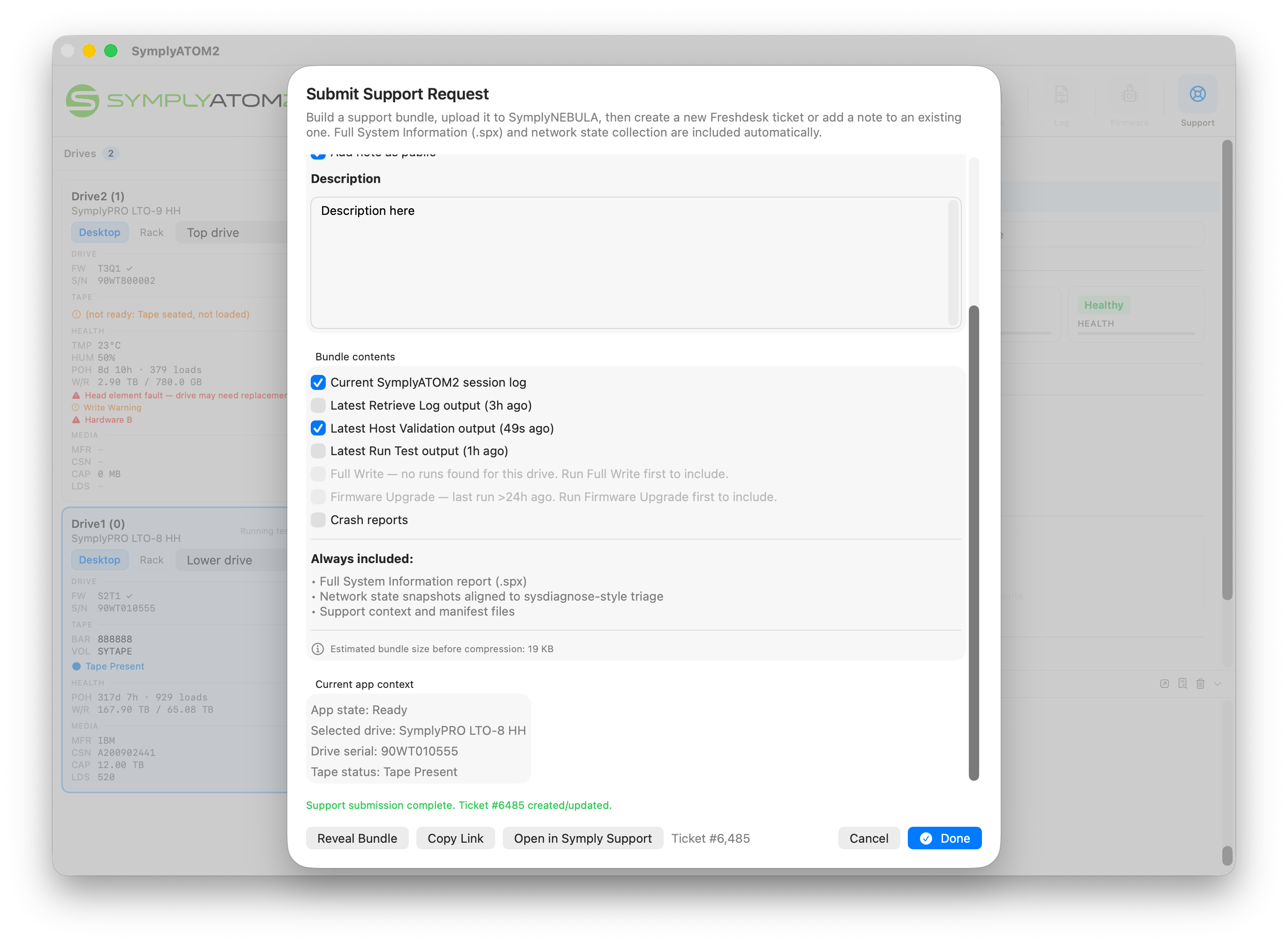
The following actions are available after a successful submission:
- Reveal Bundle — Opens the folder containing the uploaded bundle file on your Mac.
- Copy Link — Copies a direct link to the uploaded bundle to your clipboard.
- Open in Symply Support — Opens your support ticket in a browser so you can track progress or add a reply.
- Done — Closes the window. Symply Support will contact you via email when there is an update.
Frequently asked questions
How is Host Validation different from Run Test?
Run Test exercises the drive’s internal hardware using the drive’s own built-in diagnostics, and returns a simple pass or fail result. Host Validation tests the entire connection chain — your computer, HBA, cable, and drive working together — and returns detailed throughput measurements. Use Host Validation when Symply Support suspects a speed or connectivity problem rather than a drive hardware fault.
Does Host Validation permanently destroy my data?
Yes. Host Validation writes a known data pattern across the entire tape. All existing content is overwritten and cannot be recovered. Only run the test on a tape you are prepared to erase, or on a blank scratch tape supplied by Symply Support.
Can I reformat the tape for LTFS after the test?
Yes. Once Host Validation has completed you can use the Format function in SymplyATOM2 to re-initialise the tape with an LTFS partition.
My throughput figures look low — what should I do?
Submit the results to Symply Support using Submit to Support from the result sheet. Do not attempt to re-run the test or change any settings before submitting — the results from the first run are exactly what Support needs to diagnose the issue.
What if the Upload and Submit button stays greyed out?
For a new ticket, make sure the Subject field is not empty. For an existing ticket, make sure you have clicked Verify and received a green confirmation before attempting to submit.
Do I need an internet connection?
Yes. The bundle upload and ticket creation both require an active internet connection. If you are offline, use Show Results in Finder to locate the results file and attach it manually to a support email.
Where are Host Validation results stored locally?
On macOS: ~/Library/Logs/SymplyATOM2/HostValidation/
On Windows: %LOCALAPPDATA%\SymplyATOM2\HostValidation\
Each test creates a subfolder named with the drive serial number and timestamp.
If you have any questions please submit a [support ticket]